Cloud Practitioner - Computing in the Cloud

EC2 instances
An EC2 Instance is a virtual machine that runs on top of an EC2 Physical Host:
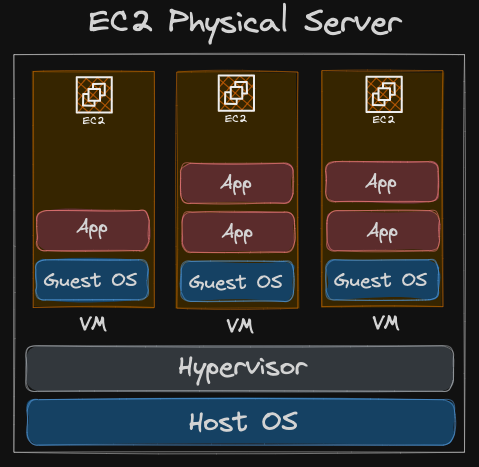
The Hypervisor is the piece of software that makes possible to run multiple virtual machines on the same physical host. However, bear in mind that this physical server is commonly shared by multiple customers. You’ll see more on this later.
When you provision an EC2 Instance you can:
- Choose the OS: Windows, Linux.
- Choose the Software that you want to run on top of the OS.
- Choose the Instance Size: nano, large, etc. Every instance has an associated cost by the hour, cpu’s number, ram, etc.
- Choose the storage type: most often a EBS but you can also use an EFS. The storage device can be a SSD, HHD, Magnetic Type, etc.
- Configure the Instance: security groups, key pairs, IAM Roles, Groups, UserData.
You also control the networking aspects of your EC2 Instance, that is, what type of traffic flows in and out of your virtual machine.
EC2 Instance Metadata
It’s just the data about your Instance. For example: Instance ID, public key, public IP address, and other information from the Instance.
EC2 Instance Locations
An EC2 Instance is an Availability Zone resilience service, because EC2 Instances live in the Availability Zones of a Region. So, if an AZ fails, the EC2 Physical host fails too along with all the virtual EC2 Instances running on top of it.
Unless otherwise, when you launch an EC2 Instance, this is placed in a default VPC that comes with your AWS Account. The default VPC is suitable for getting started and start launching public EC2 Instances right away without having to create and configure your own VPC.
However, bear in mind that any resource that you put inside the default VPC will be public and accessible by the Internet, so don’t put private information in it.
Amazon Image (AMI)
The way you select the operating system for your EC2 Instance is through an AMI (Amazon Image).
Essentially, you can think of an AMI as the equivalent of a bootable .iso image that includes: the operating system, storage mapping, architecture type, launch permissions, and any other additional preinstalled software application.
Just like a cake is the physical realization of a recipe, an EC2 Instance is the live and running version of an AMI.
When working with AMIs, consider the following:
- AMIs are reusable. For example, you can create your own AMI from a running EC2 Instance of yours, and use it to launch a new Instance from it. This way, your new EC2 Instance will have the same configurations as your current one.
- You can create an AMI from an EBS Volume, even if the EC2 Instance is running.
- You can create an AMI from an EBS Snapshot.
- AMIs are stored on S3.
EC2 Instance Families
EC2 Instances are a combination of virtual processors, memory, network, and in some cases, storage and graphic processing units.
Consider the needs of your workloads when selecting the appropriate EC2 Instance for you:
- General Purpose: it provides a good balance between cpu, memory & networking resources, good for web servers, and code repositories.
- Compute Optimized: ideal for compute intense tasks such as: batch processing, media transcoding, high-performance web servers, scientific modeling, dedicated game servers, ad server engines.
- Memory Optimized: ideal for memory intensive tasks such as: databases, and in-memory caches.
- Storage Optimized: designed for workloads that require high sequential read and write access to large datasets on local storage. Ideal for file systems, data warehousing, Elastic search.
- Accelerated Computing: use hardware accelerators, ideal for Graphics processing, Floating point number calculations, Machine Learning, Data Pattern Matching, HPC, seismic analysis, autonomous vehicles, etc.
- HPC Optimized: High Performance Computing for tasks such as large, complex simulations and deep learning.
EC2 Instance Types
Some EC2 Instances provide more capacity than others. To gain insights about the capacity details for a particular Instance, you should look at the Instance Type. For example, the instance type c5n.xlarge can be broken as follows:
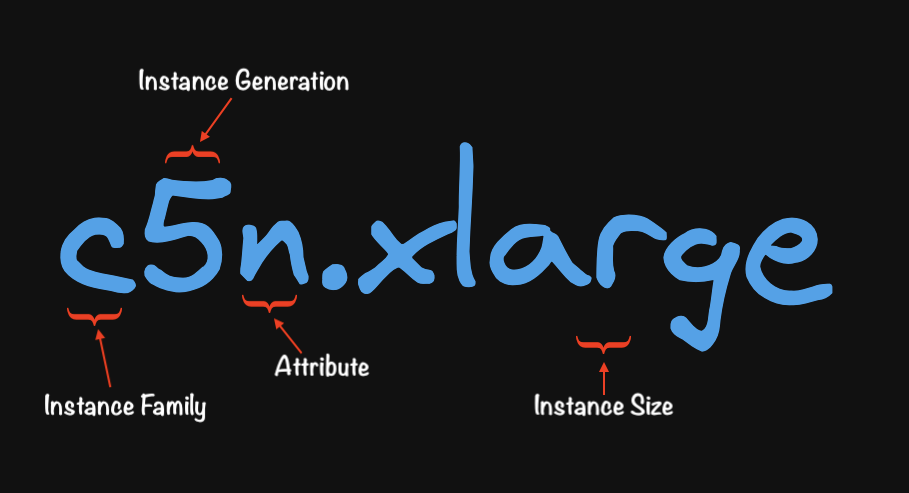
- Instance Family: this indicates that this Instance belongs to the compute optimized family.
- Instance Generation: this Instance belongs to the fifth generation of this family.
- Attribute: indicates additional attributes such as NVMe storage.
- Instance Size: indicates the size of the Instance. In this case is
xlarge, but you’ll ran into other sizes such as:nano,micro,small,medium,large,xlarge,2xlarge,4xlarge,8xlarge,9xlarge, etc.
EC2 Instance Lifecycle
An EC2 Instance transitions between different states from the moment it is created to the moment it is removed.
- When you launch an EC2 Instance from an AMI, it enters in the Pending state. Basically, your Instance is booting up.
- After some time, your EC2 Instance is Running and ready for use, but your billing as well. A this stage, charges start applying. You now can decide whether to reboot, terminate, stop or hibernate your Instance.
- When you Reboot an Instance, it remains on the same physical host. This means that, the EC2 Instance keeps its Public DNS Name, private and public IP addresses, in addition to any data stored in its Instance Store volumes. Basically, the reboot process doesn’t change the network interface configuration.
- Stopping an EC2 Instance is similar to when you shut down your laptop. When you stop and start an Instance again, your Instance can wake up on a different physical server. Your Instance retains its private IP address, though, both any public IP address and any data stored in its Instance Store volumes are lost forever. Keep in mind that you can only stop and start an EC2 Instance as long as it has an EBS volume as its root device.
- You can Stop-hibernate your EC2 Instance. It’ll enter in the stopped state but saves the last information. No boot sequence starts.
- When you Terminate an EC2 Instance, this is removed along with its Instance Store volumes and public and private IP addresses. Once the status of the Instance changes to shutting down or terminated, you stop incurring charges for that instance.
Enable terminate protection if you’re worried about terminating Instances accidentally.
Difference between stop and stop-hibernate
When you stop an EC2 Instance, it transitions from the stopping to the stopped state, all data from the memory is wiped out. You can modify some attributes of your Instance while it remains in this state. For example, it’s very common to modify the Instance type.
If you stop-hibernate an EC2 Instance, the operating system enters in hibernation (suspend-to-disk), which saves the content from the memory to the EBS root volume. You can hibernate an Instance as long as hibernation options is turned on.
Remember, you’re charged only while your Instance is in the running or stopping state. Once stopped, you no longer incur charges.
Multi-tenancy vs Single-tenant
Multi-tenancy
Multi-tenancy takes place when multiple customers run their workloads on the same hardware:
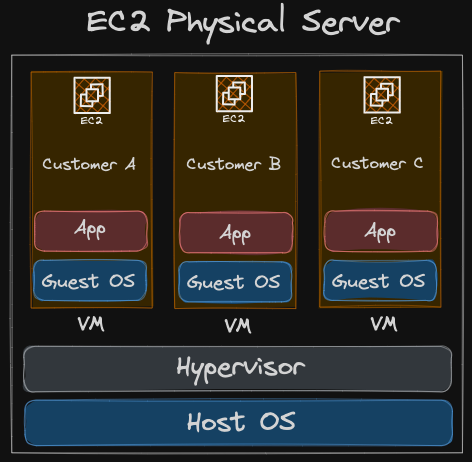
Virtual Isolation is what keep the customers away from each other.
Single-tenant
A single customer running their workload on dedicated hardware exclusively for them is known as Single-tenant:
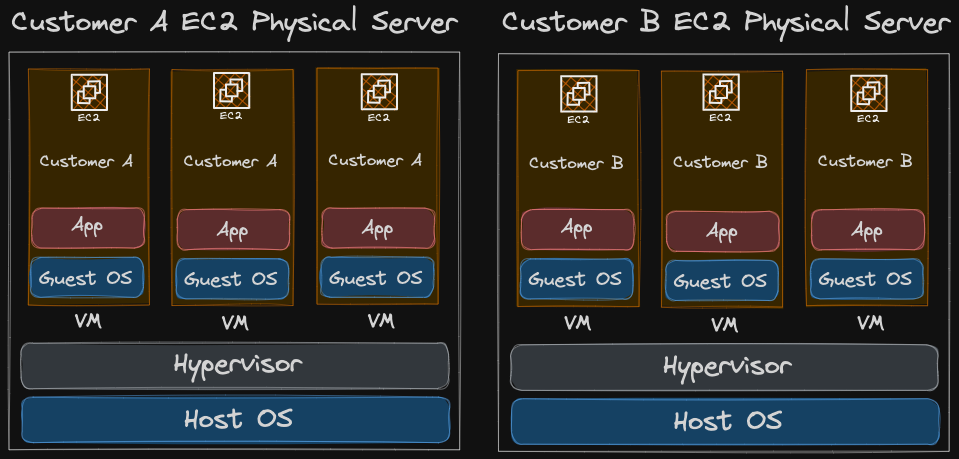
Physical Isolation is what separates customers from each other.
AWS EC2 Tenancy
When launching a new EC2 Instance you can choose the level of tenancy.
AWS EC2 has 3 levels of tenancy:
- Dedicated Host: you basically have the control of a physical server.
- Dedicated Instance: your instance runs on some dedicated physical server exclusively for you.
- Shared Instance: your instance runs alongside other’s on the same hardware. Basically, you share resources with multiple users on the same physical server. This is the default option when launching a new EC2 Instance.
Dedicated Host vs Dedicated Instance
Dedicated Host
It’s essentially a physical server in which you can manage its physical attributes.
A dedicated host is a single-tenant EC2 instance designed to let you Bring-Your-Own-License (BYOL), and for this reason is really important that you can visualize the physical characteristics of the machine: Sockets, Cores, Host ID, etc.
Bear in mind that, when you reboot a dedicated physical machine you’ll get always the same physical machine as long as you pay for it.
Dedicated Instance
Your EC2 Instance runs on a dedicated physical server exclusively for you, via Virtualization.
Following the single-tenant model, you don’t share the physical machine with others for the time your EC2 Instance is running. Thing is that, if you stop and start a dedicated Instance, you may get a different physical machine later on. This means that your EC2 Instance will be moving around on different physical servers that are not occupied by others at the time.
AWS Container Services
A container is a standard way to package your application and all of its dependencies and configurations together.
Containers have eliminated the burden of deploying applications. Differences between local and remote environments can be largely ignored. Security is improved by isolating the application from the host. Containers are ideal for microservices architectures, where the application is broken down into small, loosely coupled services.
The most basic approach is to have one or more containers running on a single host, but it’s also possible to deploy multiple containers across dozens of hosts. Every container runs in isolation from each other, similar to how virtual machines work. But, in this case, the virtual machine (EC2 Instance) becomes the Host:
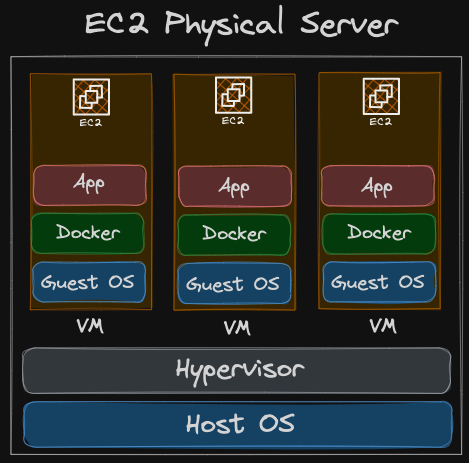
When running containerized applications, it’s important to consider scalability. Let’s say for example that instead of a single host running multiple containers, we have to manage and monitor hundreds of hosts with thousands of containers running on them.
For this purpose we need something called Container Orchestration which basically is a tool to help us to manage our containers.
Amazon Elastic Container Service (Amazon ECS)
It’s a docker container orchestration managed service that allows you to run your containerized apps on one or more EC2 Instances.
Amazon Elastic Kubernetes Service (Amazon EKS)
It’s a fully managed service to run Kubernetes on AWS.
Kubernetes is a container orchestration tool that automates the deployment, scaling and management of containers. It’s the ideal solution for microservice architectures, specially for companies managing hundred of services.
With EKS you don’t need to install, operate and maintain your own Kubernetes control pane or nodes since it is a managed service.
One difference from AWS ECS is that EKS runs on Kubernetes, whereas, ECS runs on AWS native technology.
AWS Serverless Computing
When using EC2 Instances to run your application you must:
- Provision virtual servers (Instances).
- Upload your code to these Instances.
- Manage and monitor these Instances while your application is running.
Following this approach, you have to think about both servers and code.
On the other hand, with Serverless you just need to think only about our code. You don’t have to worry about provisioning, managing and monitoring servers to run your application.
AWS Lambda
This Function as a Service (FaaS) service allows you to run your code without needing to provision and manage servers.
The way it works is as follows:
- Upload your code into a lambda function.
- Configure a trigger from an event source: HTTP Endpoint, an AWS Service, etc. The trigger is responsible for executing your lambda function.
- You’re charged for the number of times your code is invoked (requests) and for the time your code runs, rounded to the nearest 1 millisecond of duration.
A Lambda function is not meant for long-running processes such as deep learning or batch processing, it’s better suited for quick processing like a backend handling requests or activities that complete under 15 minutes.
AWS Fargate
We have mentioned before that both ECS and EKS run on top of clusters of EC2 Instances. If you don’t want to deal with the hassle of managing EC2 Instances, you can choose to use the AWS Fargate computing platform instead.
AWS Fargate is a serverless compute platform for containers that you can use with either ECS or EKS.
Choosing the right Compute Service
- If your intention is to host traditional applications and want full access to the OS just use EC2 Instances.
- If you want to host short running functions, service-oriented apps, event-driven apps and want to avoid the hassle to provisioning and managing severs, just use AWS Lambda.
- Containers make easier to support microservice or service-oriented designs. If you’re considering to run docker container-based workloads on AWS, first choose your orchestration tool: ECS or EKS, second, choose your platform: want to run your containers on EC2 Instances that you will manage? or, in a Serverless environment such as AWS Fargate where everything is managed for you?.