Python for Cybersecurity - Formatting Console Output
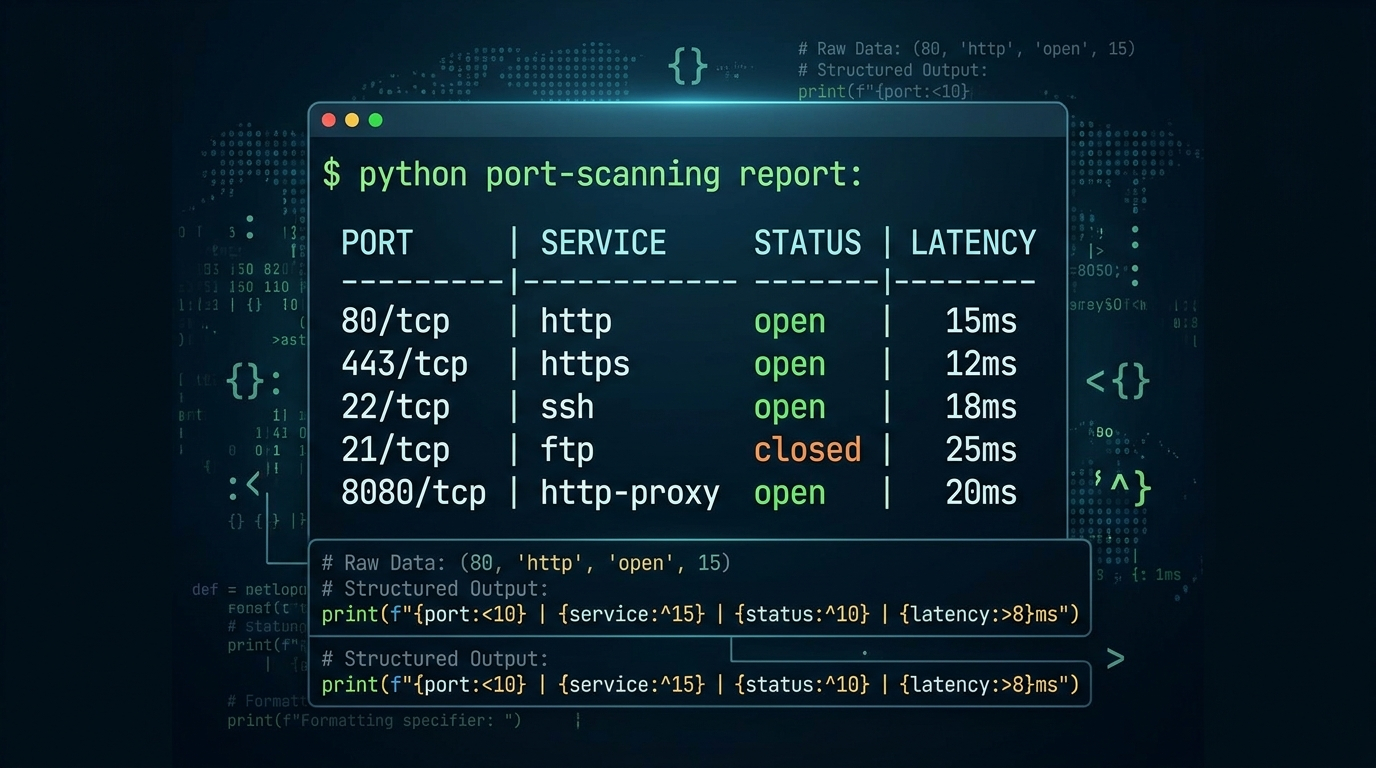
Cybersecurity tools constantly need to build messages from different pieces of information. A port scanner might need to display a host, port, protocol, and status. A log analyzer might need to report a timestamp, event type, and source IP. A vulnerability scanner might need to display a finding along with its severity.
All of this information needs to be presented in a way that makes the results easy to read and understand.
This is where String formatting comes into play.
String formatting gives you a cleaner way to combine text with values while also giving you control over how the final output looks.
In this article, we won’t dive too deep into every aspect of string formatting. Instead, we’ll focus on the techniques you’ll most likely use when building your own cybersecurity tools.
So, let’s get into it!
Concatenating Strings with +
One of the first approaches you’ll come across when displaying information to the user is using the + operator to concatenate strings.
You can use it, for example, to build a simple message for a port scanner:
1
2
3
4
target_host = "192.168.1.10"
target_port = 443

print("Scanning " + target_host + " on port " + str(target_port))
The result:
1
Scanning 192.168.1.10 on port 443
The + operator may be suffice for simple things, but it’s not ideal. The problem is that things can get messy pretty quickly as you add more values.
For Instance:
1
2
3
4
5
6
7
8
9
target_host = "192.168.1.10"
target_port = 443
protocol = "HTTPS"
status = "OPEN"

print("Host: " + target_host +
	" | Port: " + str(target_port) +
	" | Protocol: " + protocol +
	" | Status: " + status)
Output:
1
Host: 192.168.1.10 | Port: 443 | Protocol: HTTPS | Status: OPEN
Nothing wrong here, but notice this time you had to use the str() function to convert the integer 443 into a string before adding it to the rest of the message. If you don’t do this, Python will bite you back and throw an exception:
1
TypeError: can only concatenate str (not "int") to str
If you read my previous article Python for Cybersecurity - Understanding Variables, you already know why this happens.
Using Multiple Arguments with print()
If you have been following along and read Python for Cybersecurity - Handling Input, Output, you already know that print() can accept multiple arguments.
This means that instead of concatenating everything with +, you can simply pass the different values directly to print():
1
2
3
4
5
6
7
8
9
target_host = "192.168.1.10"
target_port = 443
protocol = "HTTPS"
status = "OPEN"

print("Host: ", target_host,
	"| Port: ", target_port,
	"| Protocol: ", protocol,
	"| Status: ", status)
The output:
1
Host: 192.168.1.10 | Port: 443 | Protocol: HTTPS | Status: OPEN
Notice you didn’t have to use the str() function this time.
Using multiple arguments with print() is simpler: you pass different types of values directly to it without worrying to convert everything to a string first. The result?, less work, cleaner code, and fewer chances of Python biting you back with a type error message.
Alright, at this point, you might be thinking: There has to be a cleaner way to control all of this, right?. Let’s find out 🤓
The Classic Approach: The format() Method
Another way to format your output is by using the Python’s format() method.
You simply start with a string containing curly braces {} that will act as the placeholders. You then call the format() method on the string and pass the values that should replace those same placeholders.
Let’s see this in action:
1
2
3
4
5
6
7
8
target_host = "192.168.1.10"
target_port = 443
protocol = "HTTPS"
status = "OPEN"

print("Host: {} | Port: {} | Protocol: {} | Status: {}".format(
	target_host, target_port, protocol, status
))
Output:
1
Host: 192.168.1.10 | Port: 443 | Protocol: HTTPS | Status: OPEN
As you can see, the format() method substitutes the placeholders with their corresponding values and automatically handles any data type conversion for you.
Naming Your Placeholders
Of course, you don’t need to depend only on the order of the values, you can also give your placeholders names, like so:
1
2
3
4
5
6
7
8
9
10
11
target_host = "192.168.1.10"
target_port = 443
protocol = "HTTPS"
status = "OPEN"

print("Host: {host} | Port: {port} | Protocol: {protocol} | Status: {status}".format(
    host=target_host,
    port=target_port,
    protocol=protocol,
    status=status
))
This makes possible to change the order of the placeholders without changing the order of the arguments:
1
2
3
4
5
6
print("Port: {port} | Status: {status} | Protocol: {protocol} | Host: {host}".format(
    host=target_host,
    port=target_port,
    protocol=protocol,
    status=status
))
Output:
1
Port: 443 | Status: OPEN | Protocol: HTTPS | Host: 192.168.1.10
Placeholders names make it clear what each value represents.
Formatting Values Your Way
So far, you’ve been using the {} placeholders to insert values into your strings. But what if you want to do more than just insert a value? What if you want to control how that value is displayed to the user?
Well, you can do that by putting a formatting expression inside a {} placeholder.
Imagine for a moment that you’re building a vulnerability scanner, and you want to display the response time of a target in a more readable format:
1
2
3
response_time = 0.153847

print("Response time: {:.2f} seconds".format(response_time))
The result:
1
Response time: 0.15 seconds
Take a closer look at the :.2f inside the {} placeholder. Everything after the : is the formatting expression. The .2f part is simply telling Python to display response_time as a floating-point number with exactly two digits after the decimal point.
Now, imagine that your scanner also receives a long service banner, and you want to limit how much of that string should be displayed to the user:
1
2
3
service = "Apache HTTP Server 2.4.58"

print("Service: {:.12s}".format(service))
Output:
1
Service: Apache HTTP
Here, the formatting expression .12s is telling Python to display at most 12 characters of that string.
You can also use formatting expressions with integers. For example, your vulnerability scanner might want to display a finding ID in hexadecimal:
1
2
3
finding_id = 255

print("Finding ID: {:x}".format(finding_id))
The output:
1
Finding ID: ff
Here, x formats the integer using hexadecimal notation, which can be useful when working with things like memory addresses, byte values, or other low-level security data.
There are many other formatting options available, and you don’t need to memorize them all. When you need something specific, you can always check the official documentation for all available formatting expressions.
Lastly, formatting expressions also work with named placeholders. Personally, I find this approach more readable and easier to follow:
1
2
3
4
5
response_time = 0.153847

print("Response time: {time:.2f} seconds".format(
	time=response_time
))
The result:
1
Response time: 0.15 seconds
In this case, the : is simply separating the placeholder name (if specified) from the formatting expression.
Remember, everything after the : tells Python how the value should be formatted.
Aligning Values in Your Output
Good text alignment can make a big difference when you’re looking at dozens or even hundreds of scan results. A well-structured output makes it easier to quickly scan the results, spot patterns, and identify interesting findings.
Picture this: you’re building a port scanner, and it has just finished scanning a target host. It has found several open and closed ports, and now you need a way to present those results clearly to the user. Of course, you could simply print each result one after another and call it a day, but wouldn’t it be much better if you could display the results to the user in a format like this?:
1
2
3
4
5
PORT  SERVICE      STATUS
  22  SSH           OPEN
  80  HTTP          OPEN
 443  HTTPS         OPEN
8080  HTTP-ALT     CLOSED
Awesome!. Notice how everything lines up 🫠. The ports are aligned to the right, the service names are aligned to the left, and the status is centered. This is text alignment in action.
Python provides two main ways to align text. You can either use the well-known string methods ljust(), rjust(), and center(), or you could use the alignment options <, >, ^ directly inside a formatting expression. In this article, we’ll focus on the latter because it provides a more concise and natural way to control alignment while formatting your output.
Alright, enough talk. Let me introduce you to the three alignment options:
<(Left Alignment): It places your value at the start and pads the right side with spaces.>(Right Alignment): It places your value at the end and pads the left side with spaces.^(Center Alignment): It places your value in the middle, distributing spaces equally on both sides.
Ok 🫥, but where do these alignment options actually go?
Remember the formatting expression we’ve been working with all day along? That’s where they belong.
Let’s see this with an example:
1
2
3
4
5
protocol = "HTTP"

print("|{protocol:<10}|".format(protocol=protocol)) # Left-aligned  -> |HTTP      |
print("|{protocol:>10}|".format(protocol=protocol)) # Right-aligned -> |      HTTP|
print("|{protocol:^10}|".format(protocol=protocol)) # Center-aligned-> |   HTTP   |
The result:
1
2
3
|HTTP      |
|      HTTP|
|   HTTP   |
Here, the number 10 is telling Python to reserve a minimum space of 10 characters for the value in protocol. The alignment character (<, >, ^) then tells Python how to position that value within that space.
If you’ve used Excel or any other spreadsheet before, you’re probably already familiar with the basic idea of aligning content to the left, right, or center within a cell. Well, that same idea applies here: think of a string as a row, and each {} placeholder as a cell within that row. Then, for each {} placeholder your only job is to specify two things:
- A size or minimum space for the “cell”.
- How your value should be aligned within that “cell”: left, _right, or center.
Let’s see how this works in practice. Suppose you want your port scanner to produce an output like this:
1
2
3
4
  22  SSH           OPEN
  80  HTTP          OPEN
 443  HTTPS         OPEN
8080  HTTP-ALT     CLOSED
Here’s how the solution looks in code:
1
2
3
4
print("{:>4}  {:<10}  {:^8}".format(22, "SSH", "OPEN"))
print("{:>4}  {:<10}  {:^8}".format(80, "HTTP", "OPEN"))
print("{:>4}  {:<10}  {:^8}".format(443, "HTTPS", "OPEN"))
print("{:>4}  {:<10}  {:^8}".format(8080, "HTTP-ALT", "CLOSED"))
Let’s break down what’s happening in each field:
- For the port,
{:>4}reserves a minimum of 4 characters of space, and right-aligns the value within that space using>. - For the service,
{:<10}reserves a minimum of 10 characters of space, and left-aligns the value within that space using<. - For the status,
{:^8}reserves a minimum of 8 characters of space, and center-aligns the value within that space using^.
If you could X-ray the output above, you’d see something like this (we’re using _ to represent the spaces that Python would normally add):
1
2
3
4
__22  SSH_______  __OPEN__
__80  HTTP______  __OPEN__
_443  HTTPS_____  __OPEN__
8080  HTTP-ALT__  _CLOSED_
Now you can clearly see what’s going on inside each “cell”:
- The port
22occupies a space that is 4 characters wide. Because it’s right-aligned, the two extra spaces go before the value. - The service
SSHoccupies a space that is 10 characters wide. Because it’s left-aligned, the extra spaces go after the value. - The status
OPENoccupies a space that is 8 characters wide. Because it’s centered, the extra spaces are distributed on both sides accordingly.
Alright!, let’s pause for a moment, take a breath, and then see if you can put everything you’ve learned so far into practice. Here’s a small exercise, try adding a header for the scan results:
1
2
3
4
5
6
PORT  PROTOCOL__  _STATUS_
--------------------------
__22  SSH_______  __OPEN__
__80  HTTP______  __OPEN__
_443  HTTPS_____  __OPEN__
8080  HTTP-ALT__  _CLOSED_
Pay attention to how the headers should line up with their corresponding columns. Can you figure out which alignment options and widths you need?
Remember, the width you specify is the minimum amount of space reserved for the value, not the maximum length of the value. Think of it like a cell in a spreadsheet: you can make the cell 10 characters wide, but if the value is longer than 10 characters, Python won’t cut it off, the value simply takes up as much space as it needs, while shorter values are aligned within those 10 characters.
The Modern Way: F-Strings Enters the Room
Python provides another way to format strings that is simpler and more straightforward than the format() method. This is called an f-string.
But, what exactly is an f-string anyway?
An f-string is simply a string prefixed with an f. That’s it.
Suppose your port scanner keeps track of how many ports it has touched and how many of them are open:
1
2
3
4
scanned_ports = 100
open_ports = 7

print(f"Scanned {scanned_ports} ports and found {open_ports} open ports.")
The output:
1
Scanned 100 ports and found 7 open ports.
Notice how the variables are placed directly inside the curly braces {}. Python will automatically replace them with their values.
You can even put an expression directly inside of them:
1
2
3
4
scanned_ports = 100
open_ports = 7

print(f"Closed or filtered ports {scanned_ports - open_ports}")
The result:
1
Closed or filtered ports: 93
And here comes the best part: everything you’ve learned so far about formatting values and text alignment still applies to f-strings.
Remember this example from earlier:
1
2
3
4
5
6
7
8
9
10
11
target_host = "192.168.1.10"
target_port = 443
protocol = "HTTPS"
status = "OPEN"

print("Host: {host} | Port: {port} | Protocol: {protocol} | Status: {status}".format(
    host=target_host,
    port=target_port,
    protocol=protocol,
    status=status
))
With an f-string, you can write the same thing but cleaner and more simplified:
1
print(f"Port: {port} | Status: {status} | Protocol: {protocol} | Host: {host}")
Notice what changed? With format(), you first had to create named placeholders and then pass each value to the format() method. With an f-string, you simply pass the variables directly in the string.
Same result, less code, and much easier to read.
F-strings were introduced in Python 3.6 and have become one of the most common and convenient ways to format strings in modern Python. You can learn more on them in the official documentation for f-strings.
The Old-School Veteran: Meet the % Operator
Before format() and f-strings, Python had another way to format strings: the % operator.
Today, you generally shouldn’t use % when writing modern Python code. However, if you find yourself working with older Python projects, you’ll probably come across it sooner or later.
Here’s what it looks like:
1
2
3
ip = "203.0.113.1"

print("Scanning host: %s" % ip)
Output:
1
Scanning host: 203.0.113.1
The %s acts as a placeholder for a string value.
Of course, you can also combine multiple formatting expressions in the same string:
1
2
3
4
5
service = "HTTPS"
port = 443
latency = 1.2567

print("Service: %s - Port: %d - Latency: %.2f ms" % (service, port, latency))
The result:
1
Service: HTTPS - Port: 443 - Latency: 1.26 ms
As you can see, %d is used for an integer value, while %.2f for floating-point formatting.
Occasionally, you’ll see % formatting used with named values, which uses a dictionary (you’ll learn about them later):
1
2
3
4
host = "203.0.113.1"
port = 22

print("%(host)s:%(port)d" % {"host": host, "port": port})
Output:
1
203.0.113.1:22
The formatting expressions may seem weird at first, but they are similar to the ones you’ve already seen before:
%s: for string values.%d: for integer values.%f: for floating-point numbers.%.nf: for floating-point numbers withndecimal places.
So, if you ever encounter yourself with something like this in an older security script:
1
print("[+] %s:%d - %s is %s" % (host, port, service, status))
Don’t let the syntax throw you off. It’s simply Python being a grandpa. He was here before format(), he was here before f-strings, and he still knows how to format a string.
You can find more details in Python’s official documentation on old-style string formatting.
Challenge Time - Build a Port Scan Report
Alright! 🫡 You’ve made it through quite a bit of string formatting.
You’ve learned how to combine strings and values, control how values are displayed, and align different pieces of information into clean columns. Now it’s time to put all those skills together in a practical cybersecurity scenario.
Your challenge is to write a Python script that asks the user to enter the target host as an IP address:
1
Enter target IP: 203.0.113.1
And generates the following report:
1
2
3
4
5
6
7
8
9
10
11
12
============================================================
                    Target 203.0.113.1
============================================================
    PORT PROTOCOL   SERVICE       STATUS        LATENCY (ms)
------------------------------------------------------------
      22 tcp        SSH            OPEN                 0.45
      80 tcp        HTTP           OPEN                 1.20
     443 tcp        HTTPS          OPEN                 1.15
     161 udp        SNMP           FILTERED            25.00
    3306 tcp        MYSQL          CLOSED               0.89
   16379 tcp        REDIS-CLUSTER  OPEN                12.40
============================================================
Use what you’ve learned through this article, build the output without manually adding spaces to each line.
Try to use:
input("Enter Target IP: ")to get the target IP address from the user.- F-strings to build each line of output.
- Alignment options such as
<,>, and^. - Minimum field widths to keep the columns aligned.
- A formatting expression to display the latency with exactly two decimal points.
- Use
*to create the separator lines instead of typing the same character several times.
Don’t worry if this looks like a lot at first. Take your time and give it a shot. The goal here isn’t just to make the output look right, it’s to practice thinking about how data should be structured and presented. You’ll be using these formatting techniques again as your cybersecurity tools become more sophisticated. 🧑💻