Cloud Practitioner - Block Storage with AWS Instance Stores & EBS

Your application undeniably requires some form of storage to store and manage its data. For Instance, you need a place to store the operating system, system files and software for your app. You also need a place to store assets like photos, videos, images, documents, etc. On the other hand, you might have more structured data like a person’s name and address. All of this information needs an appropriate place to be stored.
AWS Storage services are grouped into 4 categories: block storage, object storage, file storage, and database storage. In this article, we will focus on exploring block storage.
Block Storage
A typical example of block-storage device is the hard drive of your PC or Laptop.
Block storage splits files into fixed-size chunks of data known as blocks. Each block contains and individual piece of the stored data, and since each block is addressable, data can be retrieved efficiently.
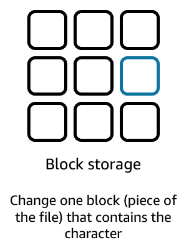
For example, let’s suppose that you have a 1GB file stored in a block-storage device. If you change 1 character of this file, you only change the block that contains that character and leave the rest of the file alone.
Block-storage solutions perform better with frequently updated data or data with high transaction rates, such as virtual machines, containers, and transactional workloads commonly found in databases.
AWS Instance Stores
An Instance Store is a disk storage physically attached to the host computer where your EC2 Instance is running on top of:
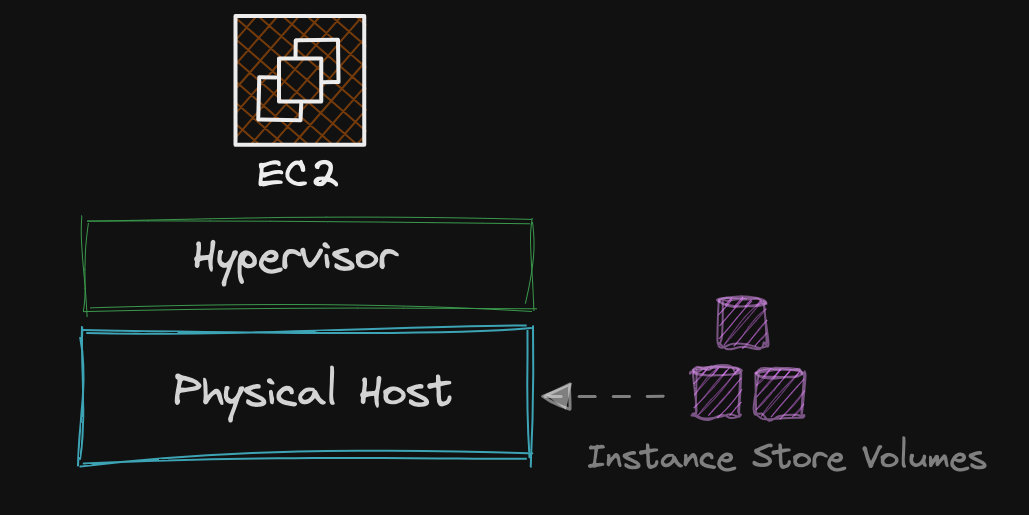
You can write data to this disk storage like a normal hard drive. However, since this volume is directly attached to the underlying physical host, if you stop or terminate your EC2 Instance you’d loose all your data written in the Instance Store volume:
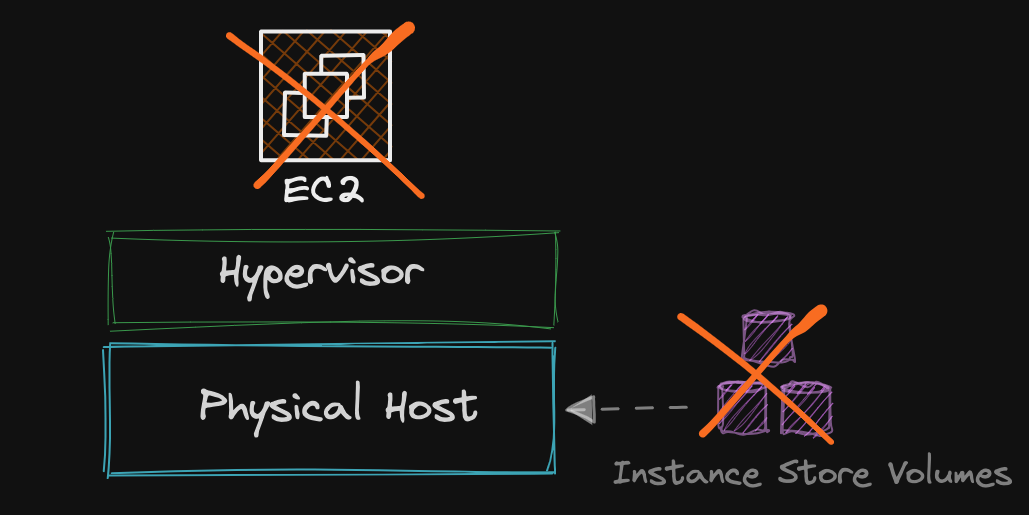
This happens because the underlying physical host can change between stoping and starting you virtual Instance. By the time your EC2 Instance is up and running again, the Instance Store volume where you had your information might not exist anymore in the new physical host.
This is the main reason why Instance Stores are called Ephemeral or Temporary store volumes. Ephemeral storage is well-suited for scenarios where you don’t need to retain data in the long-term. Additionally, you may save some cost using Instance Stores since it is already included in the overall EC2 Instance price.
AWS Elastic Block Storage (EBS)
If you don’t want your data to be wiped out every time you stop and start your EC2 Instance, you can opt to use a virtual hard drive device called EBS Volume.
An EBS Volume is designed to be used by an EC2 Instance. You basically create and mount an EBS volume to your EC2 Instance, this way, the data you write to in these volumes persists between stops and starts of your EC2 Instance.
When working with EBS Volumes, keep the following points in mind:
- You need an EC2 Instance to access the information stored in the volume.
- Whether you stop or terminate an EC2 Instance, the EBS Volume will remain available.
- You can resize your EBS Volume on the fly, including the storage type with no downtime.
- An EC2 Instance can have multiple EBS Volumes attached to it, but only one EBS Volume can be mounted on a single EC2 Instance. Nonetheless, by using AWS EBS Multi-attach an EBS Volume can shared by multiple EC2 Instances, just keep in mind that this services is not available for all Instances types.
- Since an EBS Volume is basically storage network, both the EC2 Instance and the EBS Volume will reside in the same AZ and Subnet. Nevertheless, an EBS Volume offers single-digit millisecond latency.
- An EBS Volume is automatically replicated in the data centers of its Availability Zone.
AWS Volume Types
EBS storage comes in different flavors. On one hand, you have the SSD-backed solutions which are ideal for frequent read/write operations with small I/O size. Some use case examples include databases and boot volumes:
- General Purpose SSD: Ideal for a wide variety of transactional workloads up to 16,000 IOPS
- Provisioned IOPS SSD: Highest-performance, ideal for workloads up to 64,000 IOPS.
On the other, you have the HDD-backed solutions, which consist of:
- Throughput Optimized HDD: Low cost storage, designed for frequently accessed, throughput-intensive workloads. Ideal for Big Data, Data Warehouses, and Log Processing. Suitable for workloads up to 500 IOPS.
- Cold HDD: Lowest cost, designed for infrequently accessed workloads. Ideal for File Servers. Suitable for workloads up to 250 IOPS.
- Magnetic (Standard): Previous generation HDD. Ideal for workloads where data is infrequently access such as archiving. Suitable for workloads up to 40-200 IOPS.
AWS Snapshots
Errors are inevitable. If you don’t back up your data, it’s very likely that you’ll lose it at some point. To prevent this from happening, always back up the information you store by taking Snapshots of your EBS Volumes.
A Snapshot is an incremental backup that only saves the blocks that have changed on the volume since the latest snapshot. This means that the first backup you make, all the information is copied in it. Subsequent backups will only include the pieces of information that have changed.
You can think of a Snapshot as the photograph of the hard drive of your EC2 Instance.
Snapshots are an effective disaster recovery solution, because in the event of a failure, you can always restore an EBS Volume from a Snapshot.
When working with EBS Snapshots consider the following:
- You can take a Snapshot while your Instance is either running or stopped.
- When you delate a Snapshot, only the data unique to that Snapshot is removed.
- You can create Snapshots from any block storage regardless of where it resides, including data on-premises.
- From Snapshots you can create AMIs.
- The backups you made are stored redundantly in multiple AZs and live on S3. However, you don’t need to interact with S3 to work with your EBS Snapshots, this is all handled by AWS.
- An EBS Snapshot can be shared across AWS Accounts and copied across AWS Regions.
- You can automate snapshot management with Data Lifecycle Management (DLM). Basically, you create Lifecycle policies to create and manage your backups automatically based on custom schedules.
- You can use EBS Direct API to read data off Snapshots. This makes it easy to track incremental changes between two Snapshots without needing to create the required EC2 Instances and EBS Volumes.
The Root Device Volume
The root device volume is simply the EBS Volume that has your operating system on it.
EBS Encryption
- Any new EBS Volume can be encrypted by default.
- EBS Volumes support encryption at rest and in transit with zero impact performance.
- Now you can encrypt a root EBS volume when provisioning an EC2 Instance.
- Snapshots of encrypted EBS Volumes are encrypted automatically.
- EBS Volumes restored from encrypted Snapshots are encrypted automatically.
- You can share Snapshots but only if they’re encrypted.
AMI Types (EBS vs Instance Store)
If you don’t have a clue what an AMI is, feel free to checkout this other article where I briefly explain what an AMI is all about.
All AMIs are categorized as either backed by EBS Volumes or backed by Instance Store Volumes.
- EBS-Backed AMI: It’s basically an image created from an EBS Snapshot. When you launch an EC2 Instance from an EBS-Backed AMI, the root device volume of your EC2 Instance will be an EBS Volume. You can stop and start your EC2 Instance without losing your data.
- Instance Store-Backed AMI (Ephemeral Storage): This type of image uses Instance Store Volumes which are Ephemeral Storage. If you launch an EC2 Instance from an Instance Store-Backed AMI, the root device volume of your EC2 Instance will be an Instance Store Volume. You can either terminate or reboot your EC2 Instance, but you cannot stop it. If the underlying host fails, you will lose all your data.