Cloud Practitioner - Object Storage with AWS S3

In object storage, files are stored as objects. Each object is treated as a single, unique unit of data when stored.
Going back to the 1GB file example, if you change 1 character of this object file, the entire file must be updated:
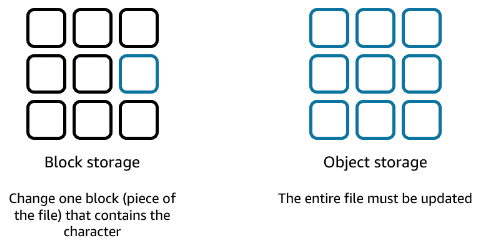
Object storage is generally useful when storing large or unstructured data sets, such as data archiving, backup and recovery, rich media content (video, images, audio), etc.
AWS S3 is an object-based storage service that allows you to store and retrieve unlimited amount of data at almost any scale. You can upload any type of file and it offers unlimited storage space. The maximum size for an individual object upload is 5 TB. Additionally, your objects are replicated across different AZs in whatever AWS Region you’re using at the moment.
S3 Objects
You can think of an AWS object as a simple file (image, video, audio, document, a large dataset, etc.) that includes additional information when uploaded and stored on AWS S3.
Once uploaded and persisted, an S3 object will consist of the following:
- Key: It’s the name of your file, it serves as a unique identifier.
- Value: It’s the content of your file, made up of sequence of bytes.
- Version ID: When object versioning control is enabled, this will be the version identifier of your file.
- Metadata: It’s just external information about the file you’re storing.
S3 Buckets
An AWS bucket is the container where you put your objects. You can have as many buckets as you want. However, keep in mind that since S3 is a universal namespace across all AWS accounts, bucket names must be unique globally.
The reason behind this constraint lies upon the fact that a web address is generated at the moment you create a new bucket:
1
https://<your-bucket-name>.<aws-region>.amazonaws.com/
As you can see, you can’t have the same name twice for obvious reasons. So when creating your bucket, make sure that the name hasn’t been taken already by someone else.
Organizing S3 objects using Prefixes
Within an S3 bucket, you can organize your objects using prefixes. A prefix is simply a string of characters used as a key to group your objects.
For example, imagine you store photos of cities organized by continent, country, and region:
1
2
3
4
urban-photo-bucket/Europe/France/Nouvelle-Aquitaine/Bordeaux/image-1.jpg
urban-photo-bucket/North-America/Canada/Quebec/Montreal/image-1233.jpg
urban-photo-bucket/North-America/USA/Washington/Bellevue/image-3232.jpg
urban-photo-bucket/North-America/USA/Washington/Seattle/image-213.jpg
In this case, the full object key includes both the prefix and the object name. For instance, in:
1
Europe/France/Nouvelle-Aquitaine/Bordeaux/image-1.jpg
- Prefix:
Europe/France/Nouvelle-Aquitaine/Bordeaux. - Object name:
image-1.jpg.
It’s important to understand that Amazon S3 does not use a traditional hierarchical file system. Instead, the entire path is part of the object key. The concept of “folders” is purely visual.
Prefixes are useful for:
- Logically group related objects.
- Filter and query objects more efficiently.
- Apply access policies at scale.
- Define lifecycle rules (e.g., archiving or deleting objects by prefix).
S3 Consistency Model
How does AWS S3 keep your data consistent?.
Amazon S3 provides different consistency behaviors depending on the type of operation performed on an S3 object.
- Strong read-after-write consistency for new objects (PUT): As soon as you upload a new object to S3, you’ll be able to read that object immediately. You always get the latest version right after the write completes.
- Eventual Consistency for overwrite PUTs and DELETEs: When you overwrite or delete an existing S3 object, changes may take a short time to propagate across the system. During this window a read request might return the previous version of the object, and a deleted object might still appear temporarily in responses.
In simple terms, when you upload a new object, you can access it right away. But if you update or delete an object, it might take a short time before those changes are fully reflected.
S3 Storage Classes
AWS S3 comes in different storage classes designed for different use cases and access patterns:
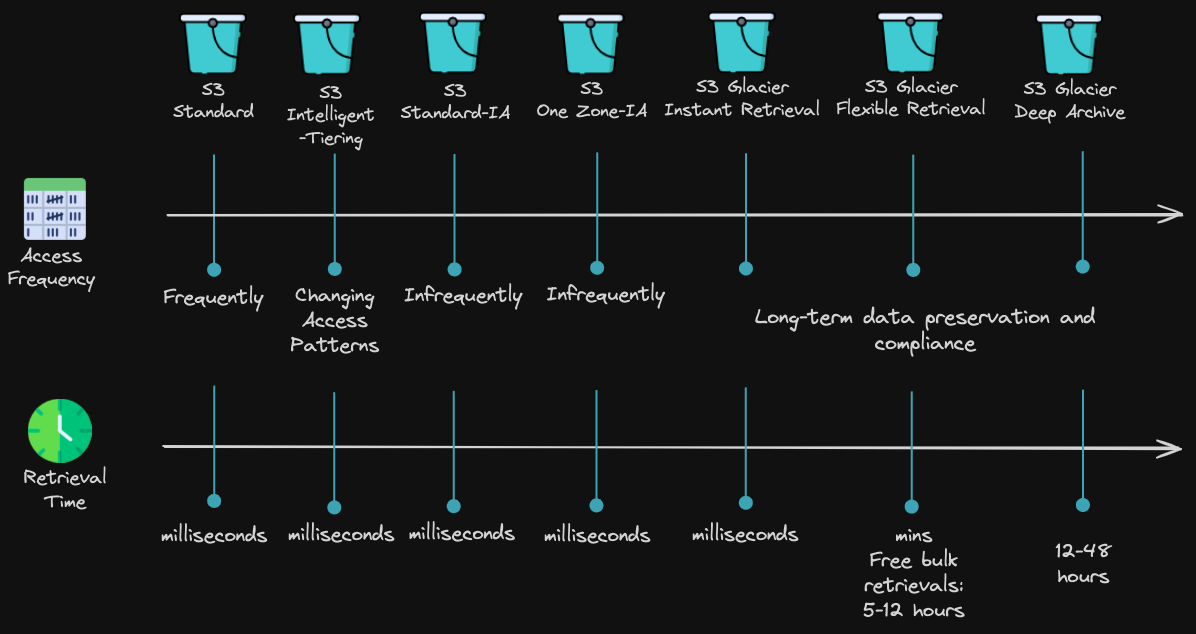
When choosing a storage class, focus on two key factors:
- Access frequency: How often you need to retrieve your data, for example, every second, minute, hour, daily, weekly, twice a month, 2 times a year, 6 times every 10 years, etc.
- Retrieval time: How quickly you need access to your data, within milliseconds, seconds, minutes, hours, etc.
In short, the more frequently and quickly you need your data, the higher the cost, while infrequently accessed data with longer retrieval times is cheaper to store.
S3 Frequent Access Storage Solutions
The following storage solutions are designed for data that is accessed either frequently or less frequently, either way, they share one thing in common: your data is retrieved and available right away, typically within milliseconds.
S3 Standard
This storage class is designed for data that is frequently accessed. Ideal for websites, content distribution, gaming applications, and analytics.
Your stored data is retrieved in milliseconds and it is replicated in at least 3 AZs.
S3 Standard-IA (Standard-Infrequent Access)
This storage class is designed for data that is accessed less frequently. Ideal for storing backups, disaster recovery files, and medium-term storage.
Your stored data is retrieved in milliseconds and it is replicated in at least 3 AZs.
S3 One Zone-IA (One Zone-Infrequent Access)
This storage class is ideal when your intention is to save costs on storage because you can easily reproduce your data in case of an AZ failure.
Your stored data is retrieved in milliseconds, but it is stored only 1 AZ.
S3 Intelligent-Tiering
This storage class uses machine learning to recognize your storage access patterns.
For example, let’s say that you haven’t accessed an object for 30 consecutive days, in this case, S3 Intelligent-Tiering will automatically move it to the Standard-Infrequent Access Tier, in contrast, if you continuously access an object located in the Standard-Infrequent Access Tier, S3 Intelligent-Tiering will move it to the S3 Standard.
This tier is ideal for data with unpredictable or changing storage access patterns.
S3 Archiving Storage Solutions
AWS archiving solutions are designed for long-term data retention & compliance. Use these solutions when your data doesn’t need to be accessed frequently or immediately.
The main difference between the following archiving solutions are storage costs and retrieval times. The lower the storage cost, the longer it takes to retrieve your data.
S3 Glacier - Instant Retrieval
This storage class is designed for archived data that still requires immediate access. Your stored data is retrieved in milliseconds.
S3 Glacier - Flexible Retrieval
This archiving solution is designed for archived data that don’t required immediate access. Your information typically will be available within a few minutes to hours.
S3 Glacier - Deep Archive
This archiving solution is the lowest-cost option in S3, it is designed for long-term retention.
Data retrieval typically takes 12 to 48 hours, making it ideal for data that must be stored for 7–10 years or longer and is accessed very rarely (e.g., once or twice a year).
S3 Versioning
In Amazon S3, objects are identified by their key (name). Without S3 Versioning enabled, every time you upload a file with the same name, it’ll overwrite the original object.
However, there are cases where you may want to keep multiple versions of the same object (in the same bucket) without changing its name. To do this, you must enable S3 Versioning on the bucket.
Once you enable versioning on a bucket, S3 assigns a unique version ID to each object. For example, you can have two objects with the same name in the same bucket, but they’ll have different version IDs, something like:
my_photo (version ID 111111)my_photo (version ID 12121212).
Those two version are coexisting in the same bucket.
Versioning helps you with object recovery from accidental deletions, accidental overwrites, or application failures. When versioning is enabled on a bucket:
- Deleting an object doesn’t remove it permanently, instead, S3 adds a delete marker on the object. If you want to restore it, just remove this marker and the object will be reinstated.
- Deleting a specific version is permanent: If you delete a particular version of an object, it is permanently removed and cannot be recovered. Be cautious when deleting versions of your current object.
- Overwriting creates a new version: When you upload an object with the same name, it becomes the current version, while previous versions are still preserved.
Bucket Versioning States
Another thing to keep in mind is that, a bucket can be in one of the following states:
- Unversioned (default): There are no versions of new or existing objects in the bucket, objects are overwritten.
- Versioning-enabled: Versioning is enabled for all objects in the bucket.
- Versioning-suspended: Versioning is suspended for new and existing objects. However, all existing objects keep their object versions.
One important thing you should be aware of is that, once versioning is enabled on a bucket, it cannot disabled it, you can only suspend it.
Key Considerations
- To reduce your S3 bill, you might want to delete previous versions of your objects when they’re no longer needed.
- Keep in mind that, if you make your current object public, previous versions won’t automatically inherit this setting. Each version, including the current one, has its own individual permissions that are managed separately.
S3 Storage Lifecycle Management
Maybe you don’t want to manually move all your objects between storage classes in order to reduces costs. You’ll likely want to automate this process, and you can do it by configuring an S3 Lifecycle Policy for your bucket.
With an S3 Lifecycle Policy you can automate two types of actions:
- Transition: Specify when objects should move to a different (usually lower-cost) storage class.
- Expiration: Specify when objects should be permanently deleted.
A typical lifecycle policy might look like this:
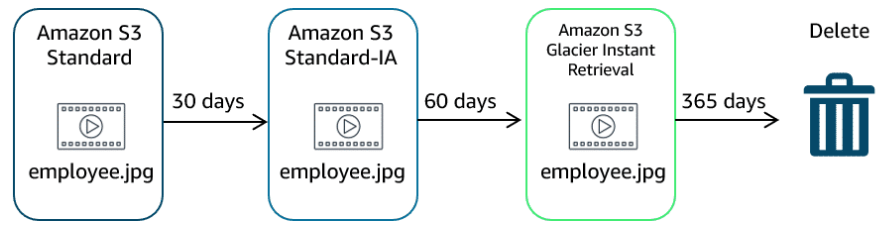
- After 30 days your objects transition from S3 Standard to S3 Standard-IA storage class.
- After 60 days being stored in S3 Standard-IA storage class, your objects transition to an archiving solution.
- After 1 year of being archived, your objects are deleted.
In case you have versioning turned on, you can integrate lifecycle policies for both your current versions and previous versions of your objects.
Optionally, you can use S3 Storage Class Analysis to discover data that should be moved to a low-cost storage class based on access patterns. Then use this information to configure an S3 Lifecycle Policy that makes the data transfer.
S3 Security
By default, everything on S3 is private: buckets, folders, and objects can only be seen by the AWS Account owner (root) or the user who created them. Access can be granted to others by using an access policy.
There are two main ways to control access in S3. Let’s take a closer look at each.
IAM Policies (Identity-Based Policies)
These policies are attached to IAM users, groups, or roles and define what actions they can perform on S3 resources.
Use IAM policies when:
- You want to centrally manage permissions in one place.
- Giving users access to multiple AWS services (not just S3).
- You prefer managing access at the user or role level.
This is an example of an IAM policy:
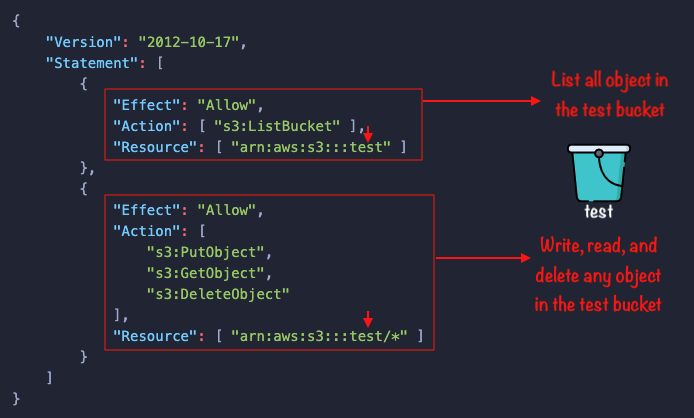
If that IAM policy is attached to a user, group, or role, it’ll allow that identity to perform those S3 actions on the test bucket.
Resource-Based Policies
These policies are attached directly to S3 resources.
On one hand, you have Bucket policies, which define what actions are allowed or denied on a specific bucket.
S3 bucket policies are useful in the following scenarios:
- You want to control access at the bucket level.
- You need cross-account access without using IAM roles.
- You require larger policy sizes than IAM allows. S3 bucket policies have a larger size limit.
This is an example of an S3 bucket policy:
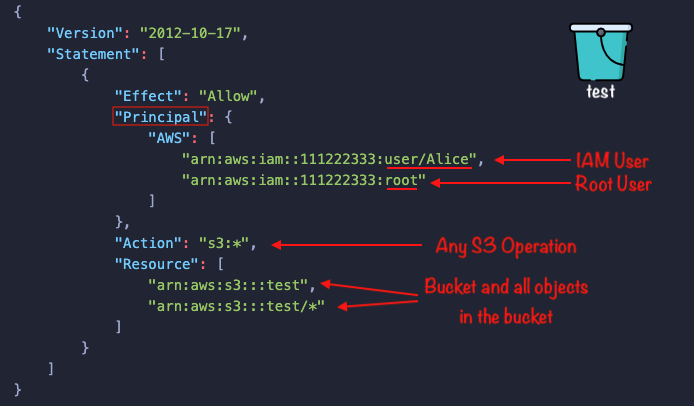
If this bucket policy is attached to the test bucket, then, user Alice and the root user of account 111222333 are allowed to perform any S3 action (s3:*) on the bucket test and all its objects.
As you can see, both an IAM Policy and a Bucket policy are written in JSON format. However, the key difference between the two is that, bucket policies require a Principal (who is allowed), while IAM policies do not because the principal is implicitly the identity the policy is attached to.
Access Control Lists (ACLs)
Another type of Resource-based Policy is an Access Control List (ACL), which is a legacy control mechanism used to define permissions at the object level. They are written in XML and are automatically created when you create a bucket or object.
The bucket owner or the AWS Account root user has full control over the resource:
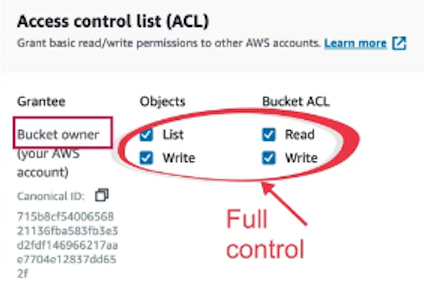
Through an ACL you can apply object-level permissions, this way you can have several objects with different permissions in the same bucket. This is useful in scenarios where you want to have different permissions for different objects for different users/groups.
However, ACLs are not recommended for most use cases. AWS advises using IAM policies or bucket policies instead.
It’s noteworthy that as a best security practice, always turn on MFA delete on your buckets to protect your objects from accidental or unauthorized deletion.
S3 Encryption
AWS S3 provides encryption at rest and in transit to protect your data with no additional cost.
Encryption in Transit
Encryption in transit takes place while your data is being transmitted between you and AWS S3. This is achieved by the use of SSL/TLS protocols, ensuring that data cannot be intercepted or read during transmission.
Encryption at Rest
Encryption at rest protects your data while it is stored in S3. This is done using server-side encryption, where S3 automatically encrypts your data after it is uploaded.
S3 supports three main server-side encryption options:
- SSE-S3 (S3 Managed Keys): Encryption keys are fully managed by AWS. This is the simplest option.
- SSE-KMS (AWS Key Management Service): Encryption keys are managed together by AWS and you. This is done through AWS MKS.
- SSE-C (Customer-Provided Keys): You provide your own encryption keys with each request, and AWS uses them to encrypt/decrypt your data.
Basically, you can encrypt an individual object or the entire bucket using one of those options.
Client-Side Encryption
You can also encrypt your data before uploading it to S3. This is known as client-side encryption, where you manage both the encryption process and the keys.
S3 Cross Region Replication (CRR)
As you already know, your objects are replicated across different AZs in whatever AWS Region you’re using at the moment. However, if you wish, you can replicate your objects to other AWS Regions using S3 Cross-Region Replication (CRR).
At a high-level perspective, the way CRR works is simple: you’re supposed to have a source S3 bucket in one AWS Region, and at the same time, a destination bucket in a different AWS Region. As soon as you upload an object to your source S3 bucket, the object will be automatically replicated to the S3 destination bucket.
When working with CRR, bear the following things in mind:
- Versioning must be enabled on both the source and destination buckets.
- CRR only starts working at the moment you turn it on; any existing object in the source bucket prior to activation won’t be automatically replicated.
- Delete markers aren’t replicated.
- Previous versions of your current objects aren’t replicated.
- Permissions aren’t replicated.
- The deletion of individual versions is not replicated.
S3 Performance
AWS S3 is designed to handle a massive number of requests with an extremely low latency. For example, the first byte of a GET request is typically returned within 100–200 milliseconds.
Right off the bat, S3 can manage:
- 3, 500 PUT/COPY/POST/DELETE requests per second per prefix.
- 5, 500 GET/HEAD requests per second per prefix.
Why Prefixes Matter
You can get better performance by distributing your requests across multiple prefixes within your S3 bucket. For example, in the case of GET/HEAD requests:
- Using 1 prefix you achieve 5,500 GET requests/sec.
- Using 2 prefixes you achieve 11,000 request/sec.
- Using 4 prefixes you achieve 22,000 requests/sec.
The more prefixes you use, the higher the total throughput you can achieve out of S3. Bear this in mind when designing your S3 buckets.
AWS S3 Multipart Upload & Byte-Range Fetches
Another smart way to increase your S3 performance (specially for large files) is by using Multipart Upload and Byte-Range Fetches. These two methods are particularly helpful when transferring large amounts of data.
Multipart Upload (for uploads)
With AWS S3 Multipart Upload you can improve the performance by splitting a large file into smaller parts and uploading them in parallel. If a chunk fails to upload, it can be retried without affecting the rest of the data. This not only speed up the upload process, but also ensures efficient use of network bandwidth.
For example, let’s say you must move 10TB of information of your data warehouse into an S3 bucket, you could use S3 Multipart Upload to handle such a large transfer efficiently and reliably.
Byte-Range Fetches (for downloads)
If you’re looking to improve the download of your files, you can use AWS S3 Byte-Range Fetches. The same way, this method splits your big file into smaller chunks of data, but download them in parallel speeding up the process.
Sometimes, you might not need the entire file, but a specific section (specific range of bytes) of it, in this case, you must specify a byte range to retrieve just the portion you’re interested in. For example, instead of downloading an entire file, you can request just the first 50 bytes to read metadata or headers.
Both AWS S3 Multipart Upload and AWS S3 Byte-Range Fetches are recommended for files over 100MB and totally required for files over 5GB.
AWS S3 Transfer Acceleration
Lastly, let’s not forget about AWS S3 Transfer Acceleration which can significantly improve your upload and download speeds. When you enable S3 Transfer acceleration, instead of uploading a file directly to your S3 bucket, it is sent to the nearest edge location, which eventually, it is forwarded to the S3 bucket in the AWS Region you specified.
For example, when a user uploads a file from the United States to an S3 bucket located in Tokyo:
- The file is first sent to the nearest edge location in the U.S.
- From there, it’ll traverse through the AWS backbone network until it reaches the S3 bucket in Tokyo.
You can use this tool to compare your upload speeds directly to an AWS Region versus using S3 Transfer Acceleration.
S3 Billing
Amazon S3 pricing is based on several factors:
- Storage usage: You pay for the amount of data stored (per GB). The more you data you store on S3, the more you’ll pay.
- Requests and operations: You’re charged based on the number and type of requests (GET, PUT, DELETE, etc.) made to S3. The more requests you made the more the expense.
- Data transfer: You pay for data transferred out of S3 (egress). Transfers into S3 are typically free.
- Storage class: Costs vary depending on the storage class you choose (e.g., Standard, IA, Glacier).
- Transfer Acceleration: Additional charges apply when using S3 Transfer Acceleration for faster uploads over long distances.
- Cross-Region Replication (CCR): You are charged for replicating data across AWS regions, including storage and transfer costs.