LetsDefend - Port Scan Activity
Port scanning is a common technique used by adversaries and security teams to identify open ports and services on a network device. The goal is to discover vulnerabilities on a target system. In this walkthrough, you’ll learn to recognize common patterns and behaviors of port scans to help identify suspicious traffic.
Alright, no time to waste, let’s jump right in!.
What is the IP address scanning the environment?
To answer this question, you need to identify a source IP address that exhibits unusual activity when communicating with other network hosts. For that, you must have a comprehensive overview of all IP address, hosts, or devices detected in your .pcap file.
In Wireshark, the Statistics -> Endpoints feature gets you a detailed summary of all network endpoints that appear in the captured packet data.
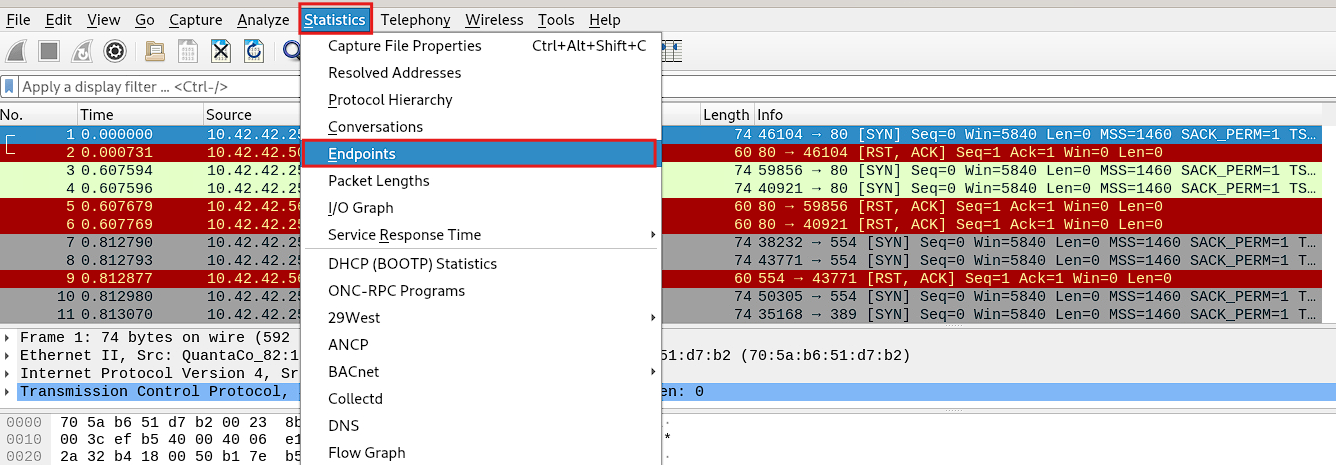
An endpoint can be an IP address (IPv4/IPv6), a MAC address, or any other identifiable device in your captured packet data. Here, you can see how the Statistics -> Endpoints feature displays traffic stats for each endpoint, such as the number of packets sent and received, the total amount of data transferred, etc.:
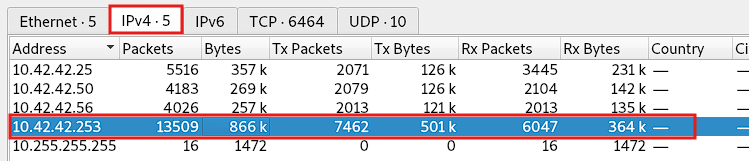
From the picture above, you can spot the heavy talkers (devices sending/receiving a lot of data). In this case, the IP address 10.42.42.253 stands out, as it is sending/receiving too much information when compared to the other IP addresses. This could be considered suspicious.
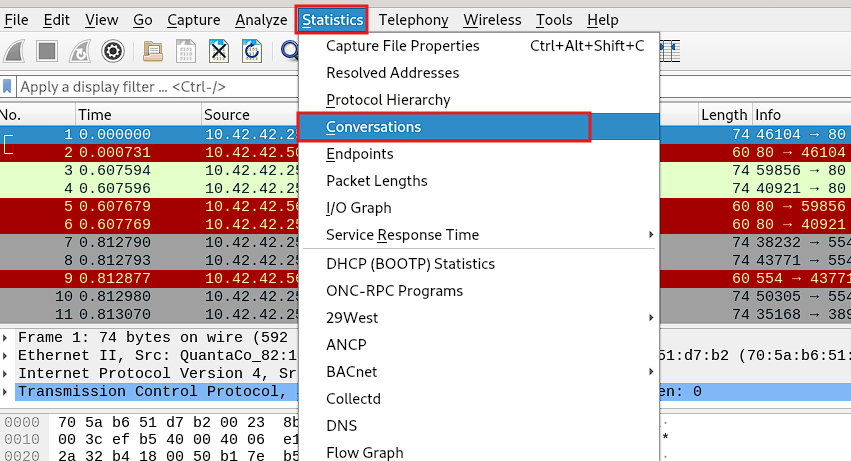
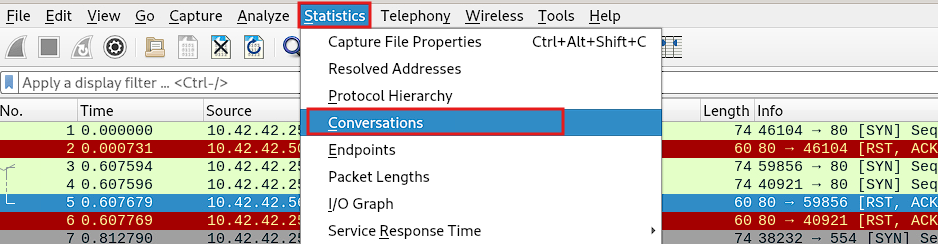
To confirm your suspicions, you want to examine which other IP addresses this host is communicating with. For this purpose, you can use the Statistics -> Conversations feature, which shows you the traffic exchanged between two endpoints:
Since you’re only interested in IPv4 interactions, just select the IPv4 tab. Here, you’ll see you see 6 pairs of IP addresses. The Address A and Address B columns represents the two IP addresses that have communicated with each other, just keep in mind that there’s no “client/server” assumption here, Wireshark uses this Address A/B just as a labeling for display. You decide who is the “client” or the “server” by examining the communication direction:

As shown, your suspicious IP address 10.42.42.253 has engaged with three other IP addresses: 10.42.42.25, 10.42.42.50, and 10.42.42.56.
First, let’s see all the packets that 10.42.42.253 (Address B) is sending to 10.42.42.25 (Address A). Just bear with me:
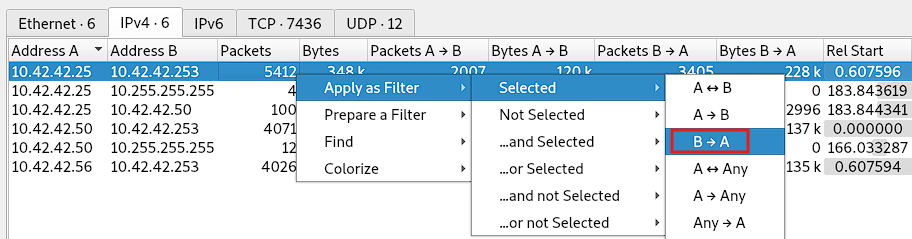
As a result, Wireshark will create the appropriate display filter for you. As you scroll down through all the filtered packets, you’ll notice that your suspicious IP address 10.42.42.253 is repeatedly trying to initialize TCP connections to host 10.42.42.25 using different destination ports. You can tell this by the multiple SYN packets being sent to various ports:
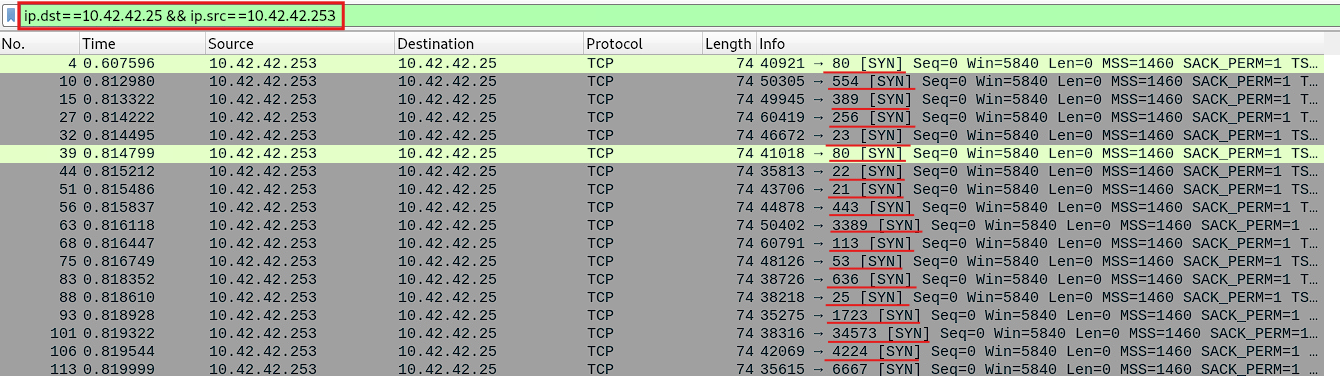
But what does 10.42.42.25 has to say about this?. How does it respond to these connection attempts?. Let’s find out by reversing the filter:
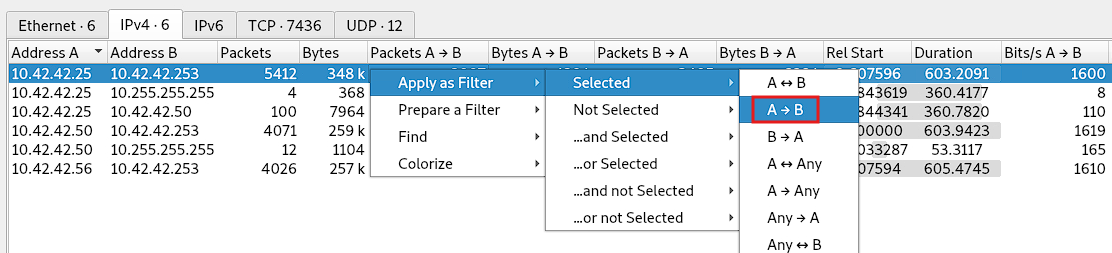
Again, Wireshark creates the appropriate display filter for you. As you can see, as you scroll down through all the filtered packets, the host 10.42.42.25 responds immediately with a RST (Reset) and a ACK to all the TCP connection attempts:
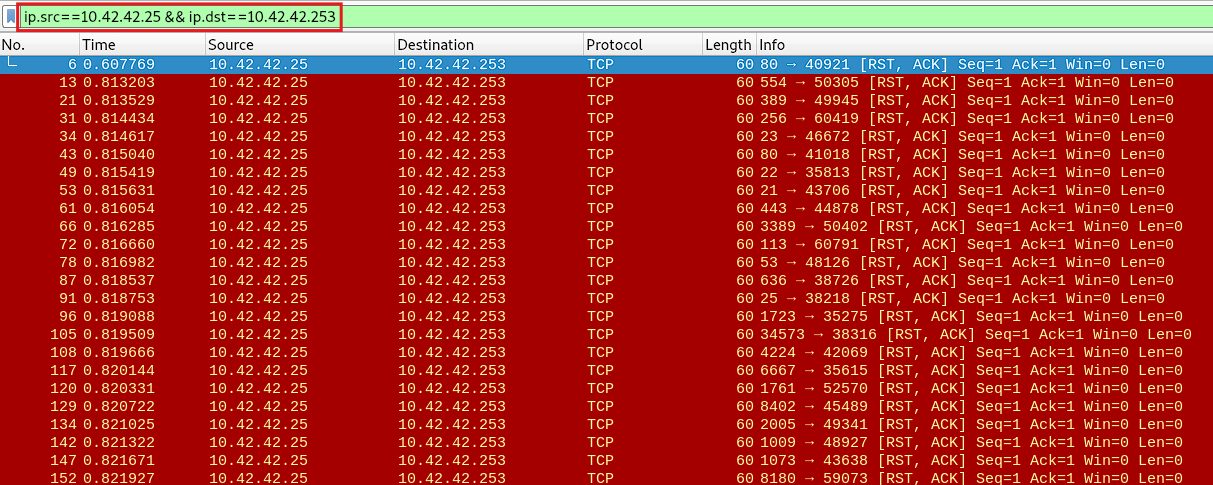
This can happen maybe because no service is listening on those ports or there’s a firewall rejecting the connections, either way this kind of pattern is typical in Port scanning.
You can apply the same approach to the other two IP addresses and get your own conclusions.
In short, the answer to this question is: 10.42.42.253
What is the IP address found as a result of the scan?
This question suggests, that the scan was successful. The malicious IP address 10.42.42.253 received a response from one of the hosts it’s engaging with, indicating that one of them is open, listening, and accepting connections. But which one is it?.
From the previous question, you observed that the scan attempted to establish a TCP connection with the target hosts by sending a SYN packet as part of the 3-way handshake process. In this sense, a successful response would imply receiving a SYN-ACK packet from one of the target hosts.
To find this out, simply use the Statistics -> Conversations feature as you did before:
Select the relationship, for example between the malicious IP address 10.42.42.253 and the target 10.42.42.50:
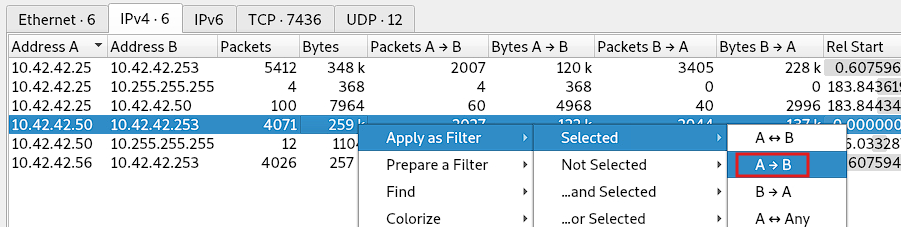
And you’ll have your answer:
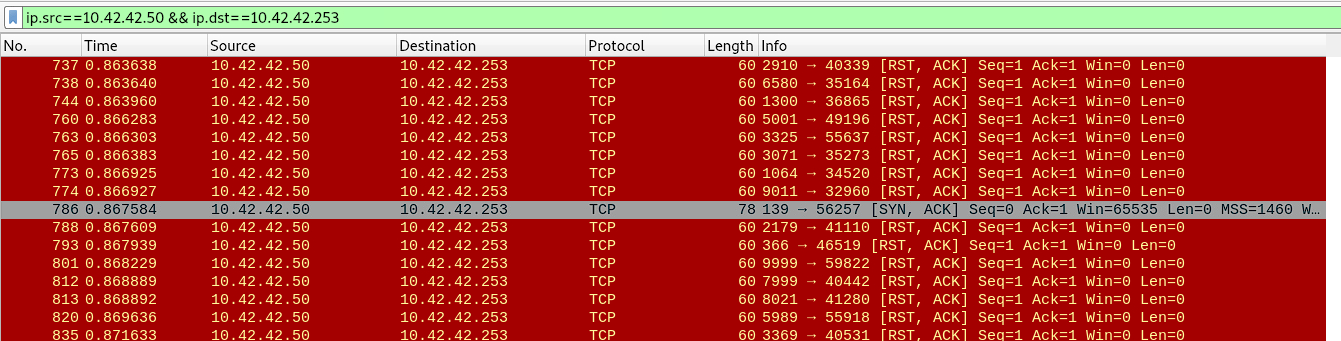
As shown, the host with the IP address 10.42.42.50 responded to the scan with a SYN-ACK packet, indicating a successful connection attempt. You’ll find a couple more SYN-ACK responses as you scroll down. However, if you don’t want to inspect relationship by relationship, you can always write a display filter, something like:
1
ip.addr == 10.42.42.253 && tcp.flags.syn == 1 && tcp.flags.ack == 1
And there you go:
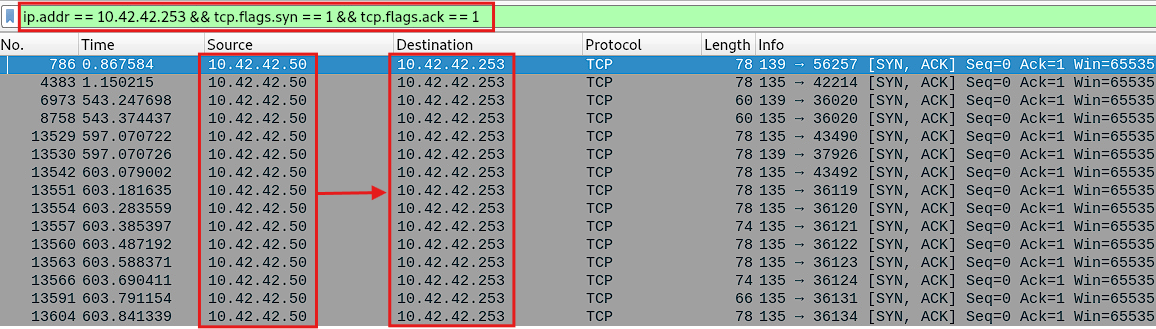
So, the answer to this question is: 10.42.42.50
What is the MAC address of the Apple system it finds?
Sometimes I really have to scratch my head to figure out what exactly LetsDefend is asking for 😒. Anyway.
This question has to do with the hardware manufacturer or vendor name associated to the network devices that appear in you .pcap file. Just as you can view their IP addresses, you can also see their corresponding MAC addresses. Once again, you’ll use the Statistics -> Conversations feature, but this time select the Ethernet tab:

To answer the question, you have to resolve those MAC addresses to their respective vendor names. How’d you do this?.
Remember that the first 3 bytes of any MAC address are known as the Global OUI (Organizationally Unique Identifier), which identifies the vendor or manufacturer that made the NIC (Network Card Interface). Lucky you, Wireshark can do this automatically, simply enable the Name resolution option, and the vendor names for the MAC addresses listed will be resolved:
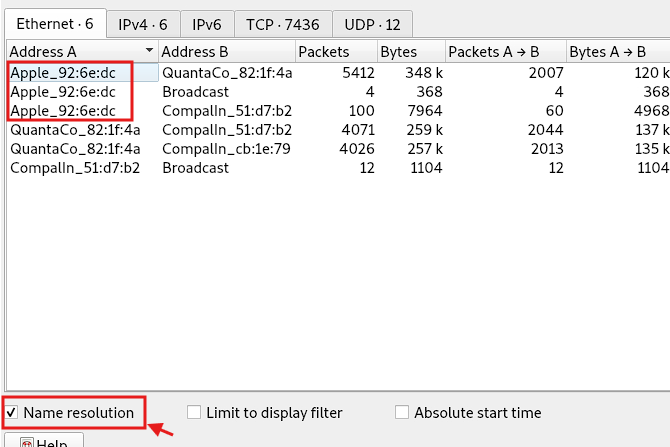
So yeah, as you correctly guessed it. The MAC address for the Apple-92 vendor device is 00:16:cb:92:6e:dc.
Therefore, the answer for this question is: 00:16:cb:92:6e:dc
What is the IP address of the detected Windows system?
This question suggests that one of the network devices identified in your .pcap file is running on a Windows system. Your task is to identify such device.
By using a method called Passive analysis you can guess a host’s operating using Wireshark, but not with a 100% certainty. There’s an interesting article about this approach right here. What you essentially do is inspect the TTL value in the IP header and the TCP Window Size of the first packet in a TCP session, such as a SYN or a SYN-ACK packet.
For instance, Windows typically sets the TTL value to 128 for outbound packets, while Linux defaults to 64. Likewise, the default TCP Window Size on Windows is 65535, whereas on Linux it usually ranges around values like 5840 or 5720. The table below illustrates these differences more clearly:
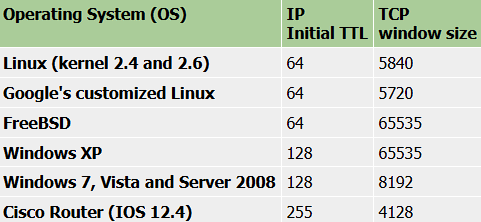
So, according to that table, you can create a display filter that shows packets matching the Windows operating system constraints, like this:
1
ip.ttl >= 128 && (tcp.window_size == 65535 || tcp.window_size == 8192)
You’ll see that the source IP address that matches all the conditions is 10.42.42.50. To confirm you guess, inspect the IP and TCP layer of the first SYN-ACK packet:
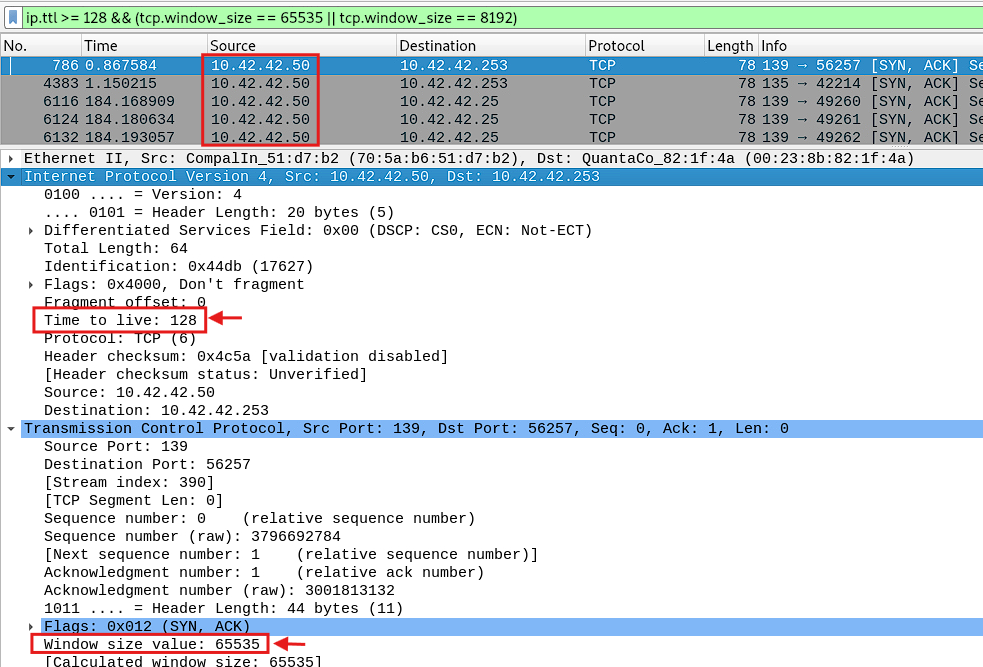
And there you have it. The device with the IP address 10.42.42.50 is running on a Windows system.
Therefore, the answer to this question is: 10.42.42.50
Just be aware that the TLL value will often be tricky and by no means reliable. The issue is that this value is decremented by one for every router (hop) the packet passes through on its way to its destination. So, an IP packet with a TTL value of 110 is expected if its initial value was 128 and has gone through 18 routers before it was sniffed.
And that’s it. Thanks for following along!. Stay curious and keep learning!.😉