HackTheBox - Introduction to Windows Command Line, Skill Assessment Walkthrough

In this article, I’ll walk you through how to solve each question from the Introduction to Windows Command Line Skills assessment section. However, I strongly encourage you to try solving them on your own first, read each question carefully and take a moment to reflect.
Now, without further ado, let’s dive in!
The flag will print in the banner upon successful login on the host via SSH
This one is easy. You just have to SSH log in to the target machine with the user user0 and no password required. You’d get something like this:
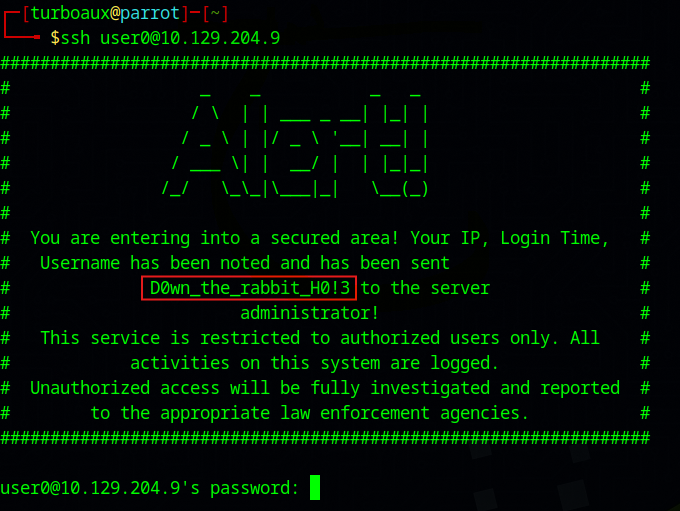
In the welcome banner, you can find your answer: D0wn_the_rabbit_H0!3
Access the host as user1 and read the contents of the file flag.txt located in the users Desktop
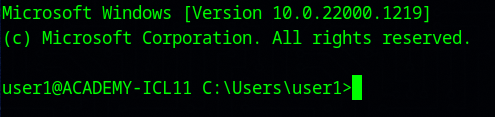
First, log in to the target machine via SSH, this time using the user1 account. The password is the answer to the previous question. By default, a CMD session will be assigned to you:
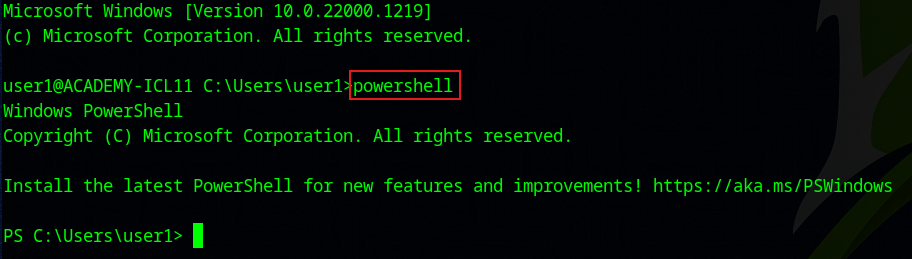
I recommend switching to a PowerShell session. Just type powershell and voilà!:
To answer this question, simply print out the contents of the flag.txt file located in the Desktop\ directory:
1
Get-Content .\Desktop\flag.txt
The result:

There’s is your answer: Nice and Easy!
If you search and find the name of this host, you will find the flag for user2
Log in via SSH to the target machine with user user2 and remember that the password is the answer to the previous question. Once there, switch to a PowerShell session and run the hostname command.
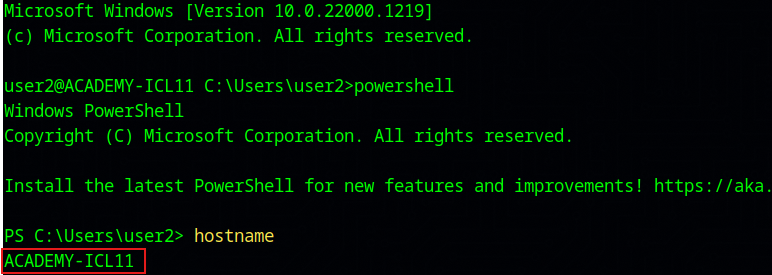
Easy peasy!. The answer for this question is: ACADEMY-ICL11
Remember that this answer will be the password for the next question. Keep that in mind!.
How many hidden files exist on user3’s Desktop?
This one is a bit more complex. Once again, login via SSH to the target machine and use the proper credentials, and run the following:
1
Get-ChildItem -Path .\Desktop\ -Force -File | Where-Object {$_.Attributes -match "Hidden"} | Measure-Object
-Force: Include hidden and system files in the results.-File: Make sure only files are returned.Where-Object {$_.Attributes -match "Hidden"}: Show only hidden files.
The result:

The answer for this question is: 101
User4 has a lot of files and folders in their Documents folder. The flag can be found within one of them
Once you’re logged in with the proper credentials, you’ll notice that most files in the Documents\ folder have a length size of 0. Since there are too many files to inspect one by one looking for the answer, you’ll need to perform a recursive search to find a file with a length size greater than 0:
1
Get-ChildItem -Path .\Documents\ -File -Recurse | Where-Object {$_.Length -gt 0}
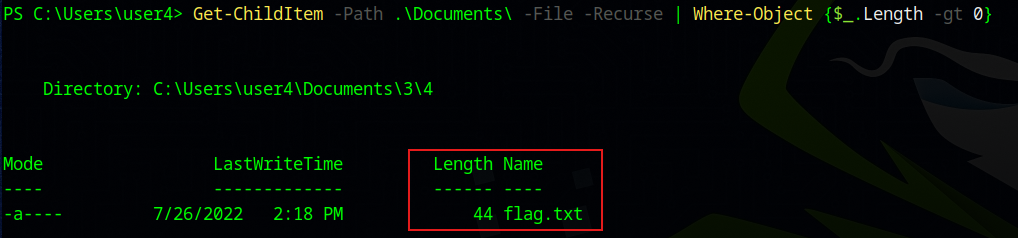
There it is. All you have to do now is to inspect its content:

The answer for this question is: Digging in The nest
How many users exist on this host? (Excluding the DefaultAccount and WDAGUtility)
This question has to do with Local User Management. To answer it, you just have to exclude the users they mention from your filter:
1
Get-LocalUser | Where-Object {$_.Name -notin @("DefaultAccount", "WDAGUtilityAccount")} | Measure-Object

The answer for this question is: 14
For this level, you need to find the Registered Owner of the host. The Owner name is the flag
A registered owner is the name you entered when you installed Windows, typically the user, company, or organization that owns the machine. This information can be found in the registry:
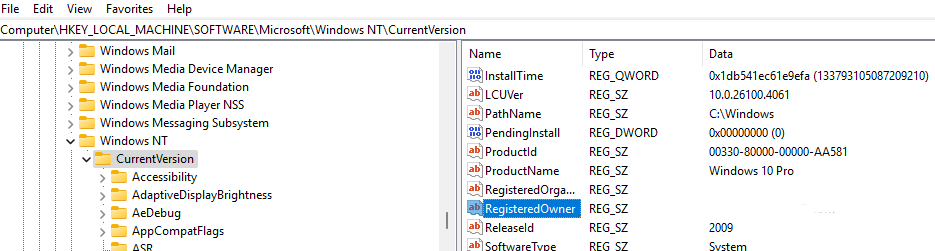
Since this question has to do with handling the Windows Registry, you’ll have to pull this piece of data out of it using PowerShell:
1
Get-ItemProperty -Path "HKLM:\SOFTWARE\Microsoft\Windows NT\CurrentVersion" | Select-Object RegisterOwner
The result:

Therefore, the answer for this question is: htb-student
For this level, you must successfully authenticate to the Domain Controller host at 172.16.5.155 via SSH after first authenticating to the target host. This host seems to have several PowerShell modules loaded, and this user’s flag is hidden in one
A Domain Controller (DC) host is a server that manages security and user authentication in a Windows Domain. It stores and enforces Active Directory services like user accounts, passwords, and permissions. It allows centralize management of computers and users in a network.
The first thing you need to understand about this question is that they’re asking you to connect to this DC Server, which turns out to be 172.16.5.155. But, before that, you need to authenticate via SSH to your target machine/host, and from there, connect to host 172.16.5.155 with the same credentials.
Once authenticated successfully to 172.16.5.155 , you’d get a shell like this:
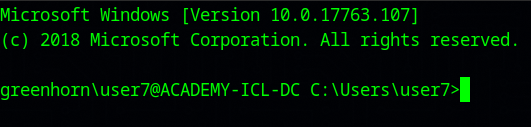
Likewise, switch to a proper PowerShell session by using the powershell command:

Much better!.
Next, bear in mind that this question has to do with PowerShell Modules. Do you remember how to list all modules currently loaded in your PowerShell session?. Sure you do, list them with Get-Module:
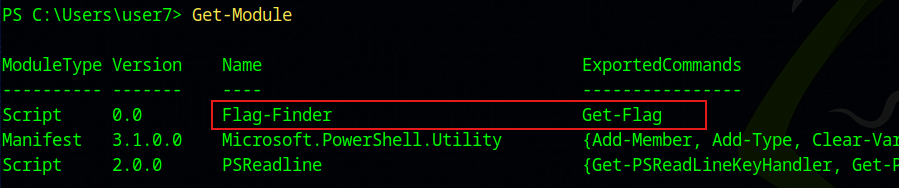
See something interesting?. How about that Get-Flag exported command. Let’s execute it and see what happens:

There you have your answer: Modules_make_pwsh_run!
This flag is the GivenName of a domain user with the Surname “Flag”
This question relates to Domain User Management. You’re asked to provide the value of the GivenName field for a domain user whose Surname field contains the word Flag anywhere in it. You can achieve this by using the Get-ADUser cmdlet as follows:
1
Get-ADUser -Filter {Surname -like "*Flag*"}
The output:
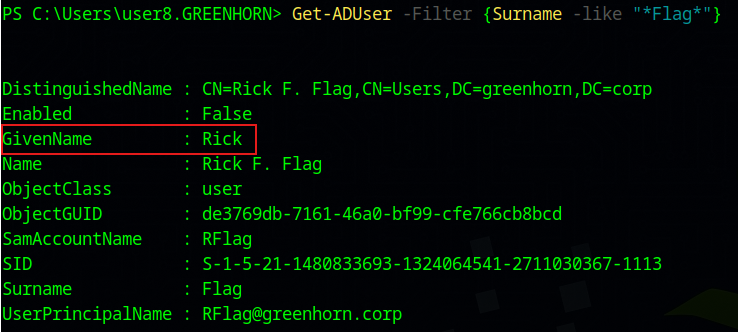
There you have your answer: Rick
Use the tasklist command to print running processes and then sort them in reverse order by name. The name of the process that begins with “vm” is the flag for this user
This question is asking you to use the tasklist command and somehow sort the output in descending order by name field. if you go and take a look at the help of this command, you’ll see you can get a CSV output and remove the header.
To answer this question I had to use a mix of CMD + PowerShell. I know I could’ve used the Get-Process cmdlet. I encourage you to do that and answer this question with the output you get, you might get a surprise. Anyway, here’s my solution:
1
tasklist /NH /FO CSV | Sort-Object -Descending
The result:
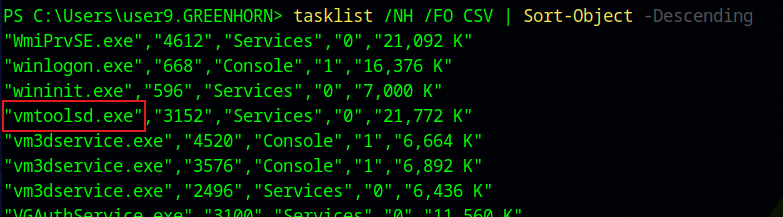
There’s you answer: vmtoolsd.exe
What user account on the Domain Controller has many Event ID (4625) logon failures generated in rapid succession, which is indicative of a password brute forcing attack? The flag is the name of the user account
This question really got me thinking for a while. The first thing you need to understand is that you’re being asked to find a user account on the Domain Controller (DC) host. Do you remember the IP address of that host from previous questions?. Yeah. Just log in to your target host and from there, connect to 172.16.5.155 via SSH. Once there, switch to a PowerShell session.
Now, the second thing to bear in mind is that this question relates to Working with the Windows Event Log, specifically, the Windows Security Logs. Your task is to find all log entries related to failed logon attempts on this Windows system. To do this, filter the logs by Event ID 4625, as shown below:
1
Get-WinEvent -FilterHashTable @{LogName="Security";ID="4625"}
The result:
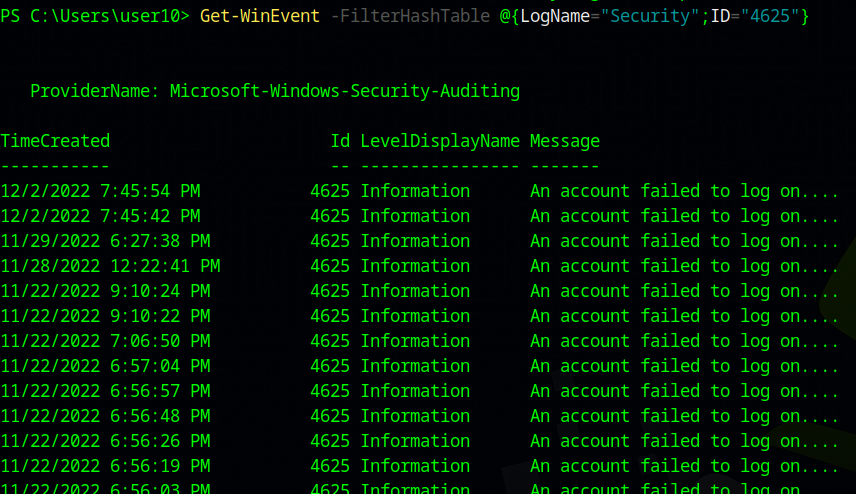
However, this doesn’t provide much information to fully answer the question, but it’s a good start.
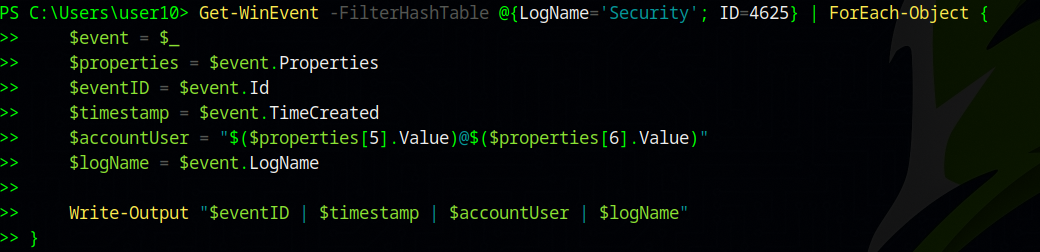
I realized I needed a better way to analyze log entries, something simple yet informative. At the very least, the format had to include the Date & Time of the event and the Account User. With this information in hand, you can determine whether the Domain Controller Host is under a brute-force attack and identify which user account is being used in the attempt.
So I came up with the following solution:
1
2
3
4
5
6
7
8
9
10
Get-WinEvent -FilterHashTable @{LogName='Security'; ID=4625} | ForEach-Object {
    $event = $_
    $properties = $event.Properties
    $eventID = $event.Id
    $timestamp = $event.TimeCreated
    $accountUser = "$($properties[5].Value)@$($properties[6].Value)"
    $logName = $event.LogName

    Write-Output "$eventID | $timestamp | $accountUser | $logName"
}
Nothing too fancy, nothing too overcomplicated. Basically, for every log entry I get the information I need, to finally print it out:
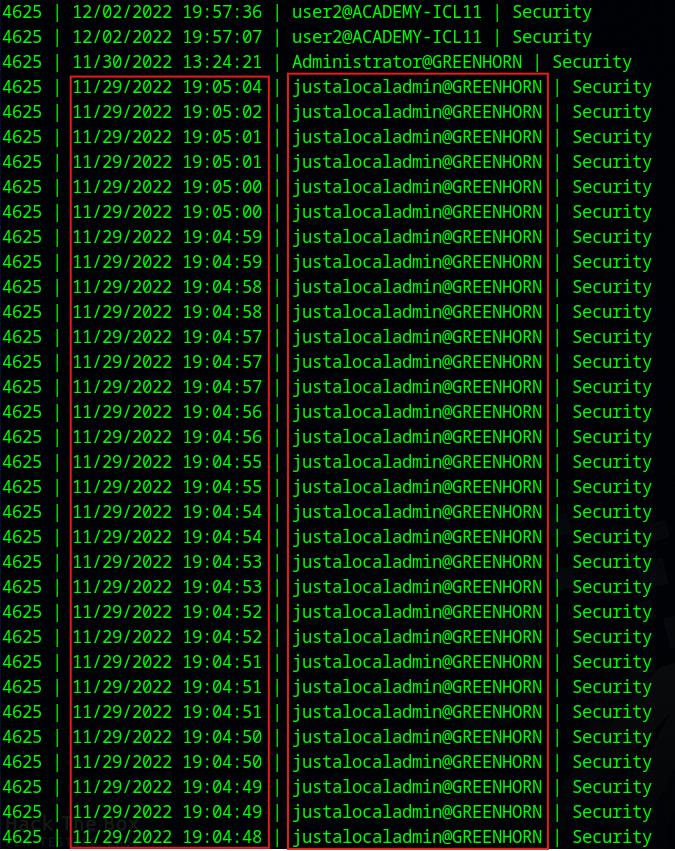
Can you see the pattern?. You’re right, the answer for this question is: justalocaladmin
I hope this has helped you dig a little deeper into PowerShell. Try running the commands yourself, experiment, tweak, and explore. And next time, see if you can answer these questions without referring back to this article. Happy hunting!